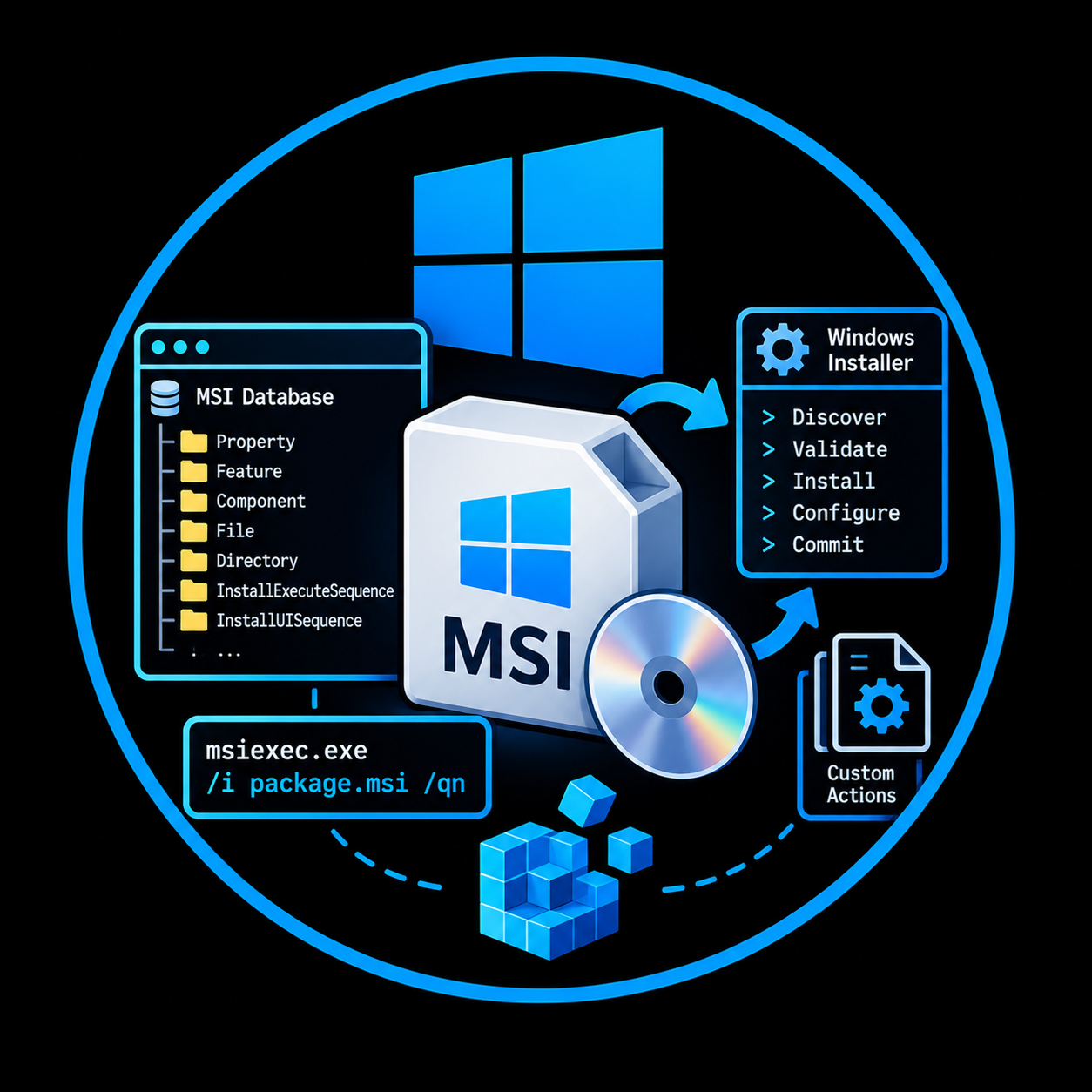
Windows Internals: Understanding MSI Installers from the Ground Up
Inside Windows Installer databases, execution sequences, filesystem activity, repair operations, and privilege boundaries. We build a controlled MSI with WiX, inspect its tables in Orca, correlate database entries with real filesystem writes in Process Monitor, and establish the baseline for installer security research.
TL;DR
A Microsoft Installer (.msi) file is not simply an archive that extracts files to Program Files. It is a relational database, stored inside a structured container, that instructs the Windows Installer engine how to install, register, maintain, repair, upgrade, and remove an application.
The installation process involves the Windows Installer service, msiexec.exe, standardized actions, component key paths, installation properties, and custom actions. Some of these operations execute in privileged contexts, while package properties and external resources may be influenced by less-privileged users.
In this post, we build a controlled MSI named Northstar Log Viewer with WiX 7, inspect its tables using Orca, install it with verbose logging, correlate database entries with real filesystem writes in Process Monitor, inspect a SYSTEM-context installer process, repair a missing component key-path file, and uninstall the product. The goal is to establish a reproducible baseline before exploring real misconfigurations in Part 2.
- Category: Windows Internals / Security Research
- Series: Windows Installer Security Research — Part 1 of 2
- Lab: Windows 10 Pro x64 (build 19045), WiX Toolset 7.0.0, Orca, Sysinternals
- Sample application: Northstar Log Viewer 1.0.0
Introduction
An MSI installer often looks like a simple setup wizard. Behind the UI, Windows Installer must resolve directory paths, evaluate installation conditions, select features and components, calculate disk requirements, register product state, and schedule changes in a transaction-aware way.
This leads to some useful security questions:
- Which part of an MSI controls the files and directories that Windows modifies?
- How is the order of installation operations determined?
- Which operations run in the user context, and which may run through the privileged installer service?
- How does Windows Installer know that a file is missing and needs repair?
- Where could untrusted inputs cross a privilege boundary?
Before testing custom actions or insecure policies, we need to understand how the normal installation path behaves. This post focuses on that baseline and uses only a purpose-built, benign MSI.
1. Windows Installer architecture
1.1 An MSI is not a PE executable
A conventional .exe file typically uses the Portable Executable (PE) format. The Windows loader maps its sections, resolves imports, and executes its instructions. An .msi file is different: it uses a compound-file storage container holding the Windows Installer database and associated streams. Files required for installation can be provided through cabinet media, including embedded cabinets.
Windows Installer interprets the package's relational tables. These tables describe what resources exist, where they belong, and which standardized actions manage them.
| Characteristic | EXE installer | MSI package |
|---|---|---|
| General format | Executable program, usually PE | Structured storage containing an installer database |
| Installation procedure | Defined by application-specific code | Standard Windows Installer actions plus optional custom actions |
| Repair | Installer-specific | Component and key-path based maintenance |
| Product registration | Installer-specific | Windows Installer product registration |
| Security context | Depends on process and elevation | Depends on client/service context, policy, action type, and elevation |
An MSI can still contain executable code (DLLs, scripts, custom actions), but the database itself is not a PE image. Windows Installer interprets it; it does not execute it the way the loader executes an EXE.
1.2 msiexec.exe and the service boundary
The command-line entry point is msiexec.exe, available on 64-bit Windows at C:\Windows\System32\msiexec.exe (with a 32-bit counterpart under SysWOW64). Common operations are:
msiexec.exe /i application.msi                 # install
msiexec.exe /x application.msi                 # uninstall
msiexec.exe /f application.msi                 # repair
msiexec.exe /i application.msi /L*V install.log # verbose log
Windows Installer uses a client/server architecture. The interactive client communicates with the installer service to perform system changes. Machine-wide installations involve privileged processes, which we will observe directly in Procmon later.
User session
    |
    v
msiexec.exe (client)
    |
    v
Windows Installer service / execution infrastructure
    |
    v
MSI tables + execution script
    |
    v
Files, registry, installed-product state
The service is named msiserver:
Get-Service msiserver
sc.exe qc msiserver
It can be stopped when no installation is taking place and started on demand.
2. MSI database tables
An MSI contains related tables rather than a flat list of instructions. In our package, Orca showed Property, Directory, File, Component, Feature, FeatureComponents, Media, InstallExecuteSequence, Upgrade, and other standard tables.
| Table | Security-relevant purpose |
|---|---|
Property | Product identifiers, installation options, properties read by actions |
Directory | Parent-child target directory relationships |
File | Payload file records and component associations |
Component | Installation units, directory references, and key paths |
Feature / FeatureComponents | Which components belong to selected features |
Media | Source media and cabinet layout |
InstallExecuteSequence | Scheduled actions and optional conditions |
CustomAction | Custom code/action definitions when present |
Upgrade | Detection of related installed products |
The main relationship we will observe is:
Feature
   |
FeatureComponents
   |
Component ----> Directory
   |
  File
A component can have a key path: a file that Windows Installer checks to determine whether the component is still installed. We will use this in section 8 when we test repair.
3. Creating our controlled MSI
3.1 Lab environment
We prepared two local Windows accounts: labadmin, verified in an elevated PowerShell process with High integrity and the Administrators group enabled; and labuser, verified with Medium integrity without membership in Administrators. UAC was enabled (EnableLUA=1). These accounts will become important in the next part of the series.
Our test machine runs Windows 10 Pro x64, build 19045. Windows 10 is beyond normal support as of October 2025; keep this lab isolated and do not use it to test unknown packages on a production network.
3.2 Northstar Log Viewer 1.0.0
Northstar Log Viewer is a fictional log utility used for this laboratory. Version 1.0.0 is deliberately not a runnable application: it installs three harmless text files so that we can study the Windows Installer mechanism without introducing unrelated application code.
C:\MSI-Lab\
├── Source\NorthstarLogViewer\
│   ├── Package.wxs
│   └── Files\
│       ├── README.txt
│       ├── config.ini
│       └── sample.log
├── Samples\
├── Logs\
└── Evidence\
config.ini contains a sample application profile:
[Application]
Name=Northstar Log Viewer
Version=1.0.0
LogLevel=INFO

[Logging]
Enabled=true
Format=PlainText
MaxSizeMB=10

[Research]
Environment=ByteJMP-Lab
The sample log contains static demonstration entries; they were not generated by an executing log-viewer application.
3.3 WiX source
We used WiX Toolset 7.0.0 with the following Package.wxs:
<Wix xmlns="http://wixtoolset.org/schemas/v4/wxs">
  <Package
    Name="Northstar Log Viewer"
    Manufacturer="Northstar Software"
    Version="1.0.0"
    UpgradeCode="8DBE6507-612E-4C1A-BF60-BAFEF190E122"
    Scope="perMachine">

    <MajorUpgrade
      DowngradeErrorMessage="A newer version is already installed." />
    <MediaTemplate EmbedCab="yes" />

    <StandardDirectory Id="ProgramFiles6432Folder">
      <Directory Id="ManufacturerFolder" Name="Northstar Software">
        <Directory Id="INSTALLFOLDER" Name="Northstar Log Viewer">
          <Component Id="CmpReadme" Guid="*">
            <File Id="FileReadme" Source="Files\README.txt" KeyPath="yes" />
          </Component>
          <Component Id="CmpConfig" Guid="*">
            <File Id="FileConfig" Source="Files\config.ini" KeyPath="yes" />
          </Component>
          <Component Id="CmpSampleLog" Guid="*">
            <File Id="FileSampleLog" Source="Files\sample.log" KeyPath="yes" />
          </Component>
        </Directory>
      </Directory>
    </StandardDirectory>

    <Feature Id="MainFeature" Title="Northstar Log Viewer">
      <ComponentRef Id="CmpReadme" />
      <ComponentRef Id="CmpConfig" />
      <ComponentRef Id="CmpSampleLog" />
    </Feature>
  </Package>
</Wix>
Scope="perMachine" requests machine-wide installation. MediaTemplate EmbedCab="yes" embeds cabinet media into the package. Each Component defines one file and its key path. WiX resolves the ProgramFiles6432Folder directory into the 64-bit Program Files location for this x64 build, as seen in the generated database.
3.4 Compiling and hashing the file
With WiX installed and its license terms accepted, our build command was:
Set-Location "C:\MSI-Lab\Source\NorthstarLogViewer"
& "$env:USERPROFILE\.dotnet\tools\wix.exe" build `
    .\Package.wxs -arch x64 `
    -o "C:\MSI-Lab\Samples\NorthstarLogViewer-1.0.0.msi"

Get-Item "C:\MSI-Lab\Samples\NorthstarLogViewer-1.0.0.msi" |
    Select-Object Name, Length, FullName

Get-FileHash "C:\MSI-Lab\Samples\NorthstarLogViewer-1.0.0.msi" -Algorithm SHA256
The generated MSI was 32,768 bytes (32 KiB). Its SHA-256 was:
EAA8D2221D4FAF0F911882901C2F7403A9F40153ED41E680856117B1901D9091
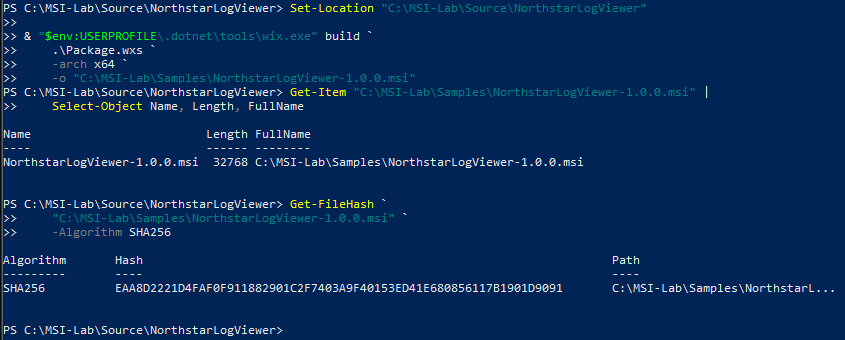
This hash identifies the exact baseline sample inspected below. Editing the database or rebuilding the MSI may produce a different hash.
4. Static analysis with Orca
We opened NorthstarLogViewer-1.0.0.msi in Orca, Microsoft's MSI database editor, and examined the following tables. The original package was left unchanged.
4.1 The Property table
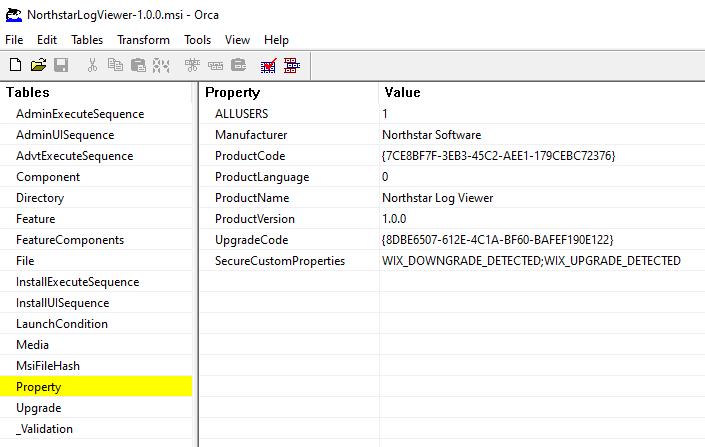
The screenshot establishes the following observed values:
| Property | Value |
|---|---|
ALLUSERS | 1 |
Manufacturer | Northstar Software |
ProductCode | {7CE8BF7F-3EB3-45C2-AEE1-179CEBC72376} |
ProductLanguage | 0 |
ProductName | Northstar Log Viewer |
ProductVersion | 1.0.0 |
UpgradeCode | {8DBE6507-612E-4C1A-BF60-BAFEF190E122} |
SecureCustomProperties | WIX_DOWNGRADE_DETECTED;WIX_UPGRADE_DETECTED |
ALLUSERS=1 means machine-wide installation. ProductCode identifies this specific package, while UpgradeCode ties together related releases (so that a future 2.0 can find and replace 1.0). The secure upgrade properties are used internally by WiX for upgrade detection.
4.2 The File table
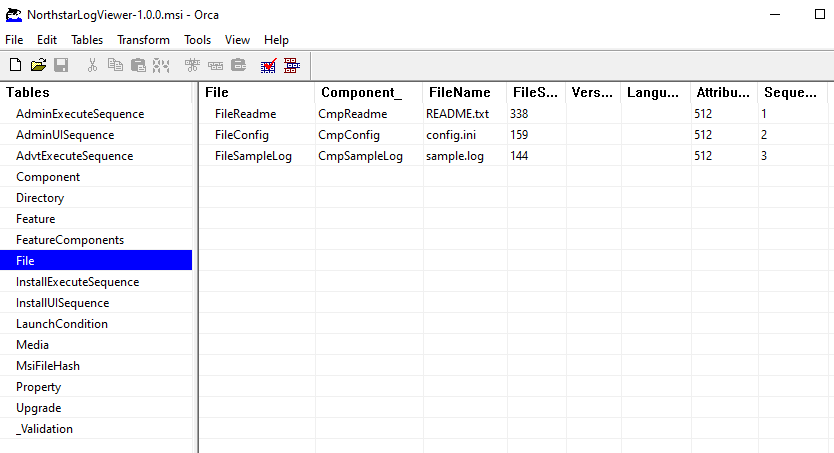
The table contains the three expected files:
| File ID | Component | File name | Size |
|---|---|---|---|
FileReadme | CmpReadme | README.txt | 338 bytes |
FileConfig | CmpConfig | config.ini | 159 bytes |
FileSampleLog | CmpSampleLog | sample.log | 144 bytes |
All three entries have file attributes value 512, the Windows Installer msidbFileAttributesCompressed flag. Their Sequence values are 1, 2, and 3. This matches our use of embedded cabinet media.
4.3 The Component table
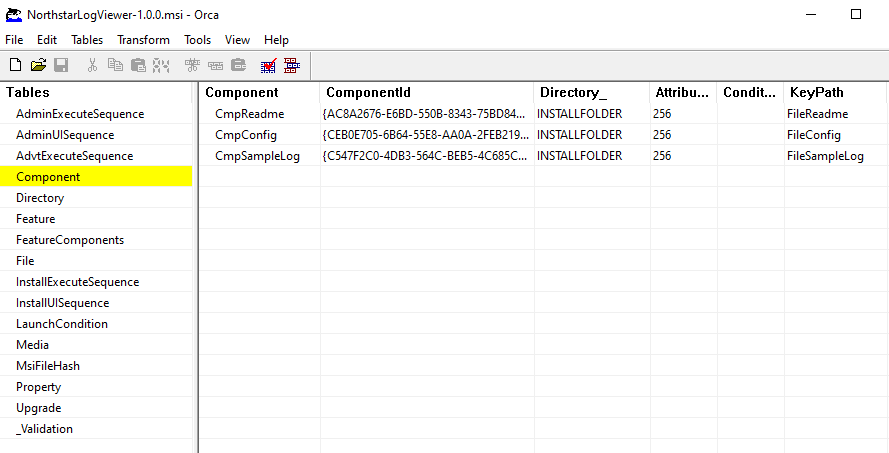
The component entries identify:
CmpReadme→FileReadmeCmpConfig→FileConfigCmpSampleLog→FileSampleLog
All target INSTALLFOLDER. Their attributes value 256 sets the msidbComponentAttributes64bit flag, consistent with the x64 build. Each component's key path is a file.
This table will later explain why removing README.txt from its expected path provides a meaningful repair experiment.
4.4 The Directory table
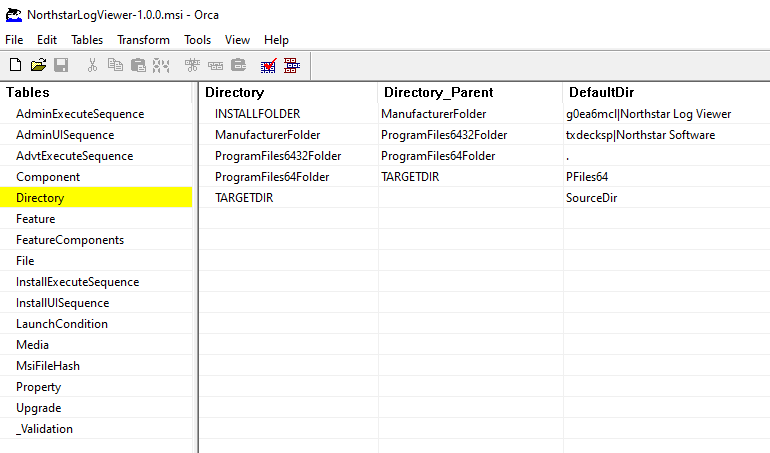
The generated hierarchy is:
TARGETDIR
└── ProgramFiles64Folder
    └── ProgramFiles6432Folder
        └── ManufacturerFolder (Northstar Software)
            └── INSTALLFOLDER (Northstar Log Viewer)
Orca displays short and long directory names in some DefaultDir fields, separated by |. On this Windows 10 x64 system, the final installed path was later confirmed as:
C:\Program Files\Northstar Software\Northstar Log Viewer\
4.5 The InstallExecuteSequence table
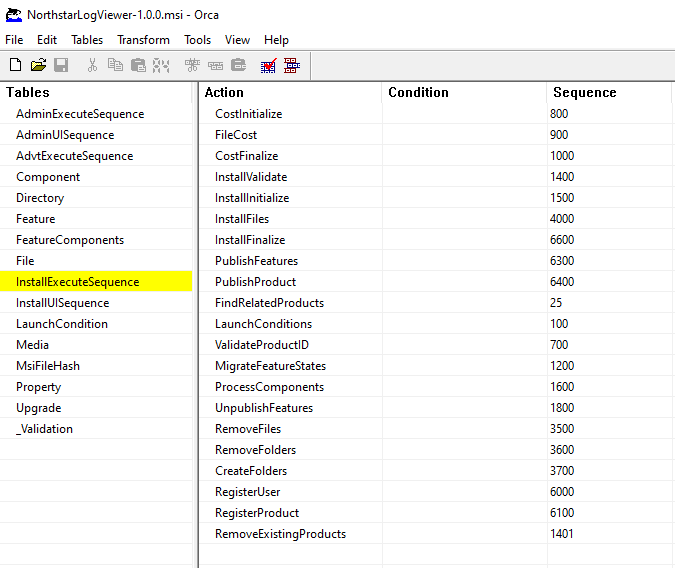
The table defines the relative scheduling of actions. The order of rows in Orca's current view is not necessarily numerical order; the Sequence field is the relevant value. Selected entries are:
| Action | Sequence |
|---|---|
FindRelatedProducts | 25 |
LaunchConditions | 100 |
CostInitialize | 800 |
FileCost | 900 |
CostFinalize | 1000 |
InstallValidate | 1400 |
RemoveExistingProducts | 1401 |
InstallInitialize | 1500 |
ProcessComponents | 1600 |
RemoveFiles | 3500 |
CreateFolders | 3700 |
InstallFiles | 4000 |
RegisterProduct | 6100 |
PublishProduct | 6400 |
InstallFinalize | 6600 |
An action in this table does not necessarily run on every invocation. Conditions and installation state determine whether each action is applicable. RemoveExistingProducts being there does not mean a previous version was actually found and removed during our first install.
The engine processes this in two phases: first it walks the sequence to build a transaction script (costing, validation), then it executes that script. InstallFiles at sequence 4000 schedules the file operations; the actual writes happen during script execution under InstallFinalize.
We also observed no CustomAction table in this first sample. This is expected: our WiX source defines only standard installer behavior.
5. Installing the package and reviewing MSI logs
5.1 Troubleshooting the first run
Our first silent installation attempt returned 1619, indicating that Windows Installer could not open the package. A subsequent attempt to hash the MSI produced a file-sharing error, meaning another process held an incompatible file handle. After closing Orca, a direct invocation of msiexec.exe succeeded.
Orca was holding the file open. After closing it, the install worked.
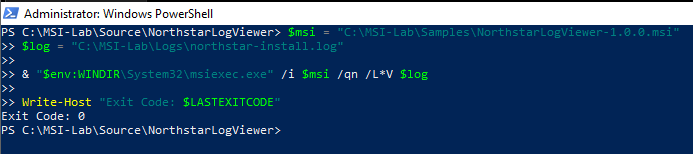
For the successful run, we executed in an elevated labadmin PowerShell session:
$msi = "C:\MSI-Lab\Samples\NorthstarLogViewer-1.0.0.msi"
$log = "C:\MSI-Lab\Logs\northstar-install.log"

& "$env:WINDIR\System32\msiexec.exe" /i $msi /qn /L*V $log
Write-Host "Exit Code: $LASTEXITCODE"
The process returned Exit Code: 0.
5.2 Checking installed files
We listed the destination directory:
$path = "C:\Program Files\Northstar Software\Northstar Log Viewer"
Get-ChildItem $path | Select-Object Name, Length, LastWriteTime
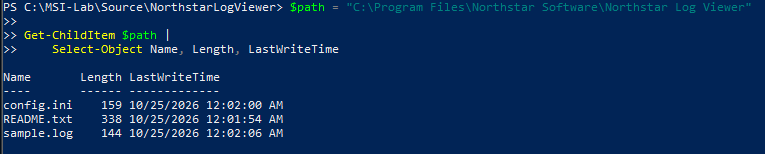
The results contained config.ini (159 bytes), README.txt (338 bytes), and sample.log (144 bytes). These sizes exactly match the Orca File table, connecting the declared MSI resources with observed filesystem state.
5.3 The execution log
The /L*V option saved a verbose log. Filtering for action start and end records showed InstallFiles, RegisterProduct, PublishProduct, and InstallFinalize, among other actions.
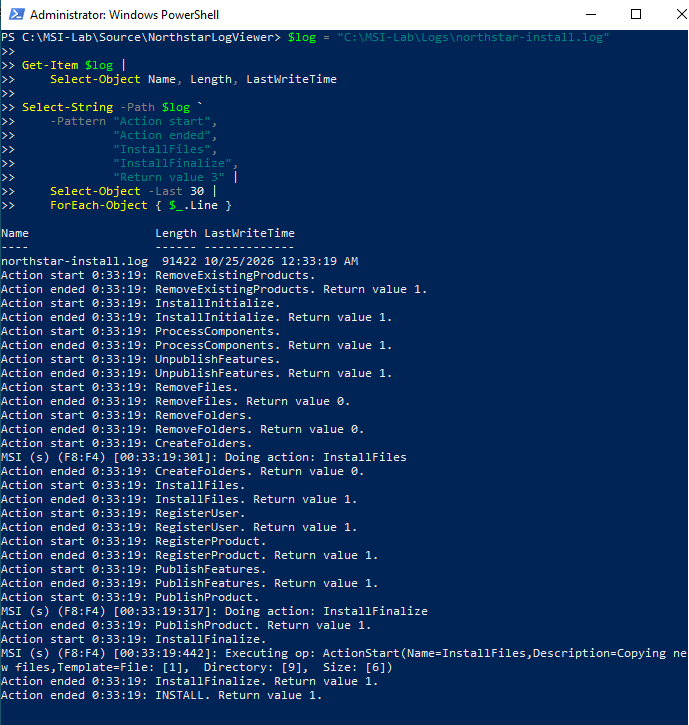
Several actions ended with Return value 1. In MSI action logging, this indicates a successful action, not process exit code 1. The log also records InstallFiles during scheduling and an Executing op: ActionStart(Name=InstallFiles...) entry during script execution, illustrating the separation between scheduling and execution.
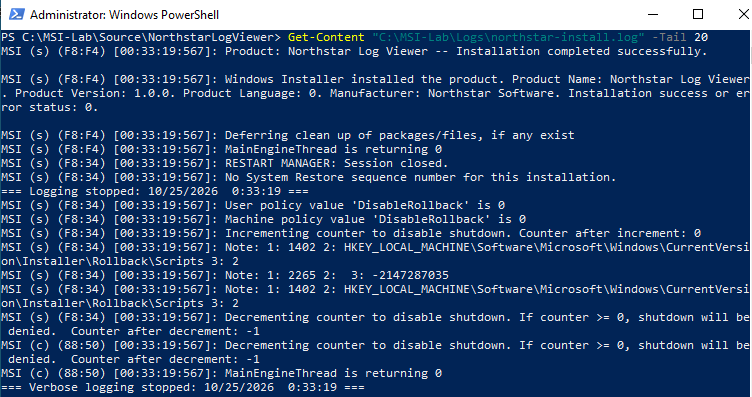
The completion log confirms Installation success or error status: 0 and MainEngineThread is returning 0. This corroborates the successful command-line exit code.
6. Watching filesystem activity with Process Monitor
To move from database records to operating-system behavior, we used Process Monitor (Procmon). Because the application was already installed, we performed a forced file repair rather than reinstalling from scratch.
6.1 Capture configuration
In Procmon, we configured a display filter for Path contains Northstar Software, then focused on filesystem activity. This kept the relevant installation folder in view without prematurely assuming which process performed each operation.
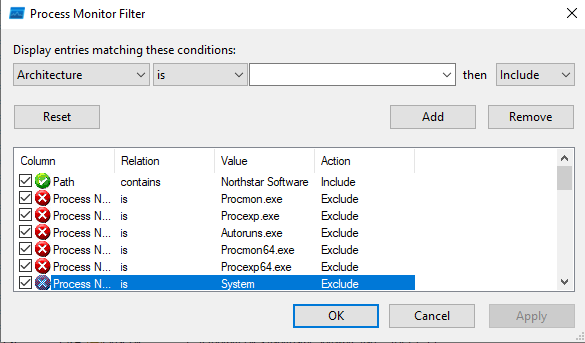
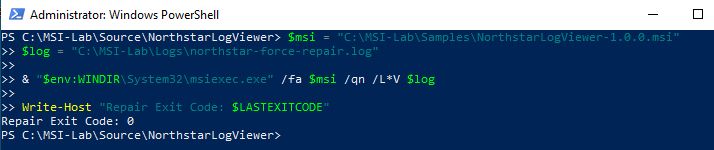
6.2 Forced repair using /fa
With Orca closed and Procmon recording, we invoked:
$msi = "C:\MSI-Lab\Samples\NorthstarLogViewer-1.0.0.msi"
$log = "C:\MSI-Lab\Logs\northstar-force-repair.log"

& "$env:WINDIR\System32\msiexec.exe" /fa $msi /qn /L*V $log
Write-Host "Repair Exit Code: $LASTEXITCODE"
The operation returned Repair Exit Code: 0. /fa requests forced reinstallation of the package's files.
6.3 Procmon events
The capture showed msiexec.exe, PID 1524, accessing the Northstar installation path through operations including CreateFile, QueryNetworkOpenInformationFile, CloseFile, and WriteFile. Many visible operations returned SUCCESS.
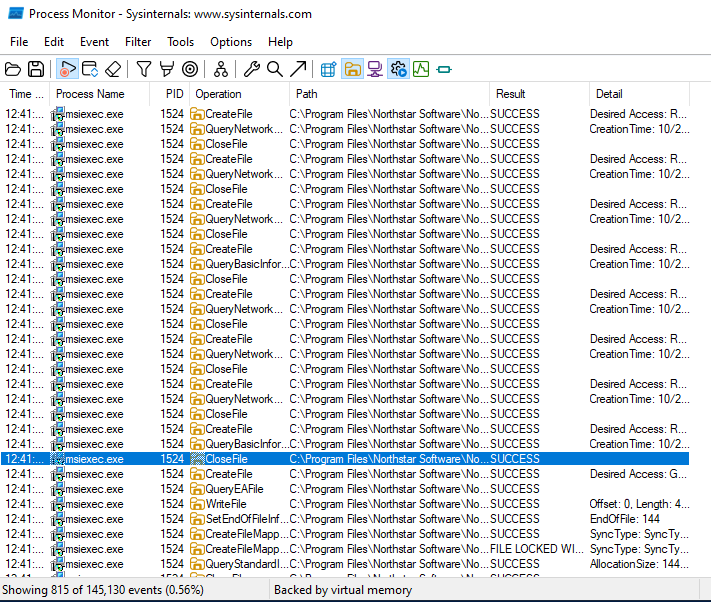
Worth noting: CreateFile in the Win32 API opens existing files too, not just new ones. The name is misleading if you are reading Procmon output for the first time.
6.4 Inspecting a real WriteFile event
We opened the WriteFile event's properties in Procmon. The event targeted:
C:\Program Files\Northstar Software\Northstar Log Viewer\sample.log
The event details showed:
| Property | Observed result |
|---|---|
| Operation | WriteFile |
| Result | SUCCESS |
| Offset | 0 |
| Length | 4,096 bytes |
| I/O flags | Non-cached, Paging I/O, Synchronous Paging I/O |
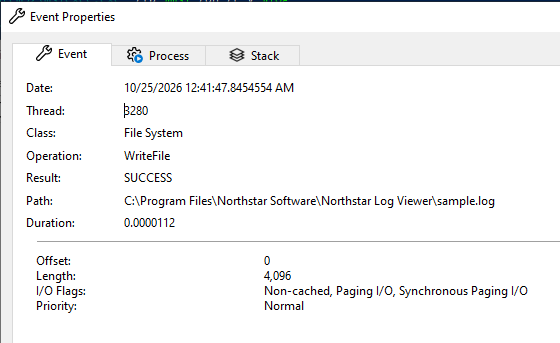
The 4,096-byte operation length does not imply that sample.log is 4,096 bytes long. The earlier directory listing showed a logical file size of 144 bytes; paging I/O may use a larger request size than the logical content length.
This closes the loop: the file declared in the MSI database, the repair operation, and the observed write event on disk all line up.
7. Which security context performed the write?
We inspected the Process tab for the same Procmon event. Procmon captures process metadata at event time, so we can examine the security context even after the msiexec.exe instance exits.
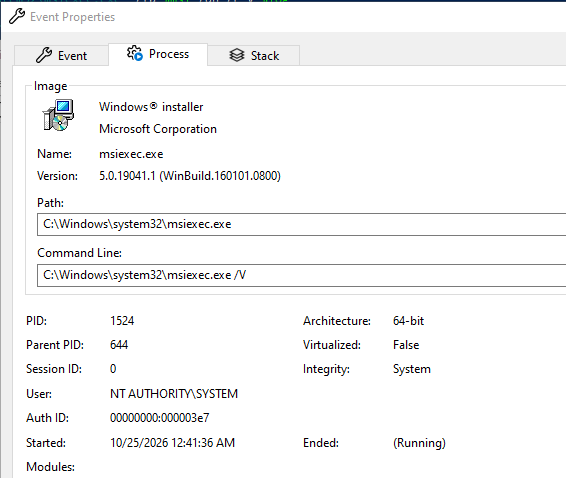
The captured properties were:
| Field | Observed value |
|---|---|
| Process | C:\Windows\system32\msiexec.exe |
| Command line | C:\Windows\system32\msiexec.exe /V |
| PID | 1524 |
| Parent PID | 644 |
| User | NT AUTHORITY\SYSTEM |
| Integrity | System |
| Session | 0 |
| Architecture | 64-bit |
Crucially, this same PID 1524 was associated with the WriteFile event targeting sample.log.
So during this repair, the Windows Installer service wrote sample.log as NT AUTHORITY\SYSTEM. We launched the repair from an elevated admin session, so this is expected behavior. The interesting question for Part 2 is: what happens when labuser (a standard user) triggers operations that end up in this same SYSTEM-context process?
8. Repairing a missing component key path
Next, we tested Windows Installer's ability to restore a missing application resource. The Component table had identified FileReadme as the key path of CmpReadme.
8.1 Simulating the missing file
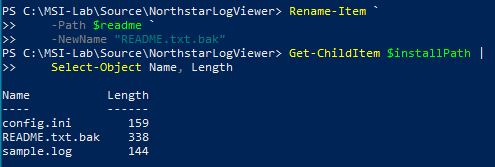
We renamed the installed README while leaving the other files intact:
$installPath = "C:\Program Files\Northstar Software\Northstar Log Viewer"
$readme = Join-Path $installPath "README.txt"
Rename-Item -Path $readme -NewName "README.txt.bak"
Get-ChildItem $installPath | Select-Object Name, Length
The directory listing showed README.txt.bak (338 bytes) and no README.txt. config.ini and sample.log remained present.
8.2 Repair using /fp
With Orca closed, we ran a repair focused on missing files:
$msi = "C:\MSI-Lab\Samples\NorthstarLogViewer-1.0.0.msi"
$log = "C:\MSI-Lab\Logs\northstar-missing-file-repair.log"

& "$env:WINDIR\System32\msiexec.exe" /fp $msi /qn /L*V $log
Write-Host "Repair Exit Code: $LASTEXITCODE"

Get-ChildItem $installPath | Select-Object Name, Length
Test-Path $readme
The command returned Repair Exit Code: 0 and Test-Path $readme returned True. The directory contained both README.txt and README.txt.bak, each 338 bytes, along with the other two application files.
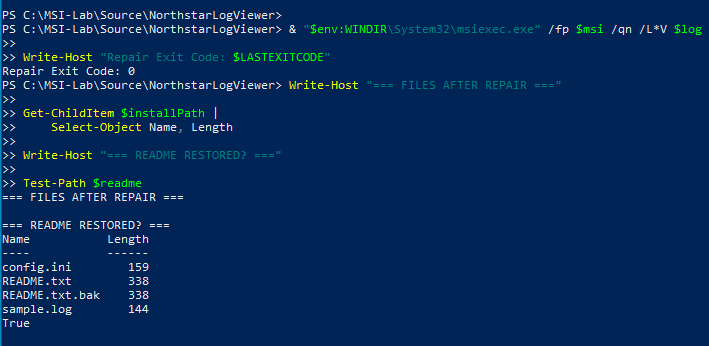
This demonstrates the difference between a resource managed by the MSI and an unrelated backup file created manually in the same directory.
8.3 Correlating repair with the log
The verbose repair log included InstallFiles and a FileCopy operation referencing SourceName=README.txt and SourceCabKey=FileReadme. It also indicated that the source for FileReadme was compressed.
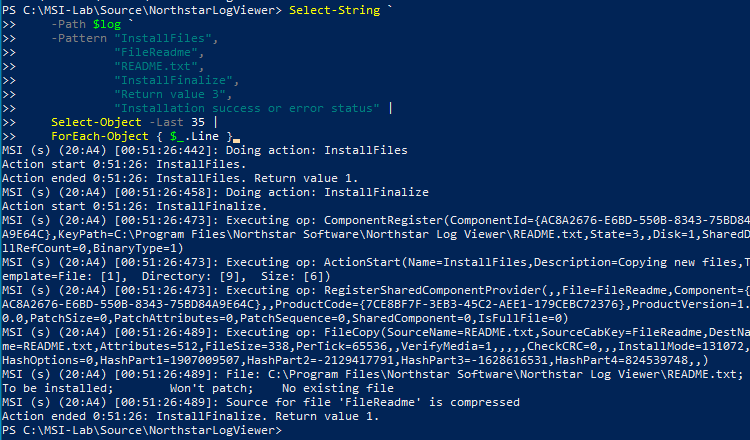
This supports a specific chain of evidence:
Component table: CmpReadme -> FileReadme key path
             |
README.txt absent from expected path
             |
msiexec /fp completed successfully
             |
Verbose log: FileCopy / FileReadme
             |
README.txt restored in Program Files
The key-path metadata, maintenance action, and final filesystem state now agree.
9. Uninstalling the product
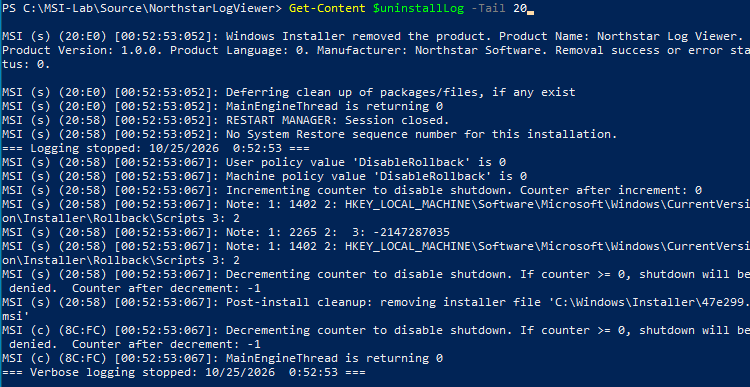
The final lifecycle test used the original package to remove Northstar Log Viewer:
$msi = "C:\MSI-Lab\Samples\NorthstarLogViewer-1.0.0.msi"
$uninstallLog = "C:\MSI-Lab\Logs\northstar-uninstall.log"

& "$env:WINDIR\System32\msiexec.exe" /x $msi /qn /L*V $uninstallLog
Write-Host "Uninstall Exit Code: $LASTEXITCODE"
The operation returned Uninstall Exit Code: 0.
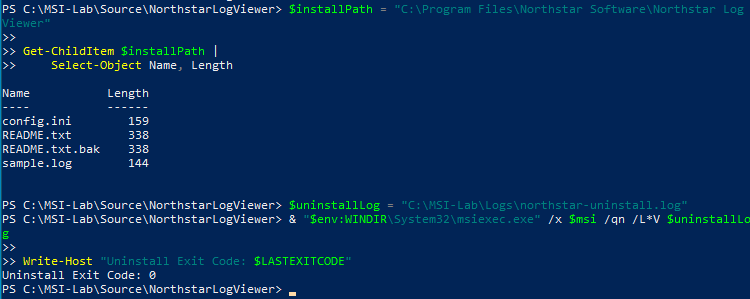
The verbose log included the completion message "Windows Installer removed the product" and Removal success or error status: 0; the engine also returned 0.
Note that README.txt.bak was created manually, outside the MSI database. Whether it survived uninstallation is a separate question worth checking:
$installPath = "C:\Program Files\Northstar Software\Northstar Log Viewer"
Test-Path $installPath
if (Test-Path $installPath) {
    Get-ChildItem $installPath | Select-Object Name, Length
}

$keys = @(
    "HKLM:\SOFTWARE\Microsoft\Windows\CurrentVersion\Uninstall\*",
    "HKLM:\SOFTWARE\WOW6432Node\Microsoft\Windows\CurrentVersion\Uninstall\*"
)
Get-ItemProperty $keys -ErrorAction SilentlyContinue |
    Where-Object DisplayName -eq "Northstar Log Viewer" |
    Select-Object DisplayName, DisplayVersion, Publisher
Windows Installer only tracks resources declared in its database. Files created manually in the same directory are invisible to it.
10. Why these internals matter to vulnerability research
Now that we have the full lifecycle documented, we can point at the specific areas where things get interesting from a security perspective.
10.1 Custom Actions
Custom actions are where installer-specific code execution lives. The questions that matter: what triggers the action, does it run immediate or deferred, does it impersonate the user or run as SYSTEM, and what files or properties does it consume?
Our package has no custom actions on purpose. It gives us a clean control to compare against when we introduce one in Part 2.
10.2 Public properties and trusted input
Public properties can be set from the command line (msiexec /i app.msi MYPROP=value). If a deferred custom action running as SYSTEM reads a property that the caller controlled, and uses it as a file path or command without validation, that is a real problem.
10.3 Writable directories and repair resources
Component repair can access source media and rewrite managed resources. When reviewing a real third-party installer, relevant questions include:
- Can a standard user alter a resource later read by elevated installation logic?
- Are temporary or installation-source directories writable by untrusted users?
- Are external DLLs and executables loaded from appropriately protected locations?
- Are resource identities and file permissions verified before use?
Our repair test showed the normal path. The attack surface appears when any of these directories or source files are writable by a lower-privileged user.
10.4 AlwaysInstallElevated
When AlwaysInstallElevated is set to 1 in both HKLM and HKCU policy paths, any user can install an MSI with elevated privileges:
HKLM\SOFTWARE\Policies\Microsoft\Windows\Installer\AlwaysInstallElevated = 1
HKCU\SOFTWARE\Policies\Microsoft\Windows\Installer\AlwaysInstallElevated = 1
Microsoft explicitly warns against this configuration. We will enable it in Part 2 and demonstrate the escalation path with labuser.
10.5 Building toward a real finding
Everything we observed so far is normal, authorized behavior. Seeing SYSTEM write a file during an admin-initiated repair is how Windows Installer is designed to work.
A privilege escalation finding needs more: a standard user who can control an input (a file path, a property value, a DLL location) that a SYSTEM-context operation then trusts and acts on. That is what we will test in Part 2 with AlwaysInstallElevated and the labuser account.
Conclusion
An MSI is a relational database that drives a transactional installation engine. The tables define what gets installed, where, in what order, and under what conditions. Understanding this machinery is necessary before you can meaningfully analyze (or exploit) it.
We built a 32 KiB package with WiX, verified every table in Orca, watched the actual filesystem writes in Procmon, confirmed the SYSTEM-context service process behind those writes, tested key-path repair, and uninstalled cleanly. Every claim in this post has a corresponding screenshot or log entry.
This gives us the baseline. In Part 2, we break it.
In Part 2 — Windows Privilege Escalation: Understanding and Abusing AlwaysInstallElevated, we will investigate the privilege boundary directly using a separately controlled test configuration and the standard-user labuser account.
References
- Microsoft — Windows Installer
- Microsoft — About the Installer Database
- Microsoft — InstallExecuteSequence Table
- Microsoft — Component Table
- Microsoft — File Table
- Microsoft — Standard Actions
- Microsoft — Custom Action Security
- Microsoft — Windows Installer Command-Line Options
- Microsoft — AlwaysInstallElevated
- Microsoft — Windows Installer Best Practices
- Microsoft — Process Monitor
- Microsoft — Process Explorer
- FireGiant — WiX Toolset Documentation